
The Plan
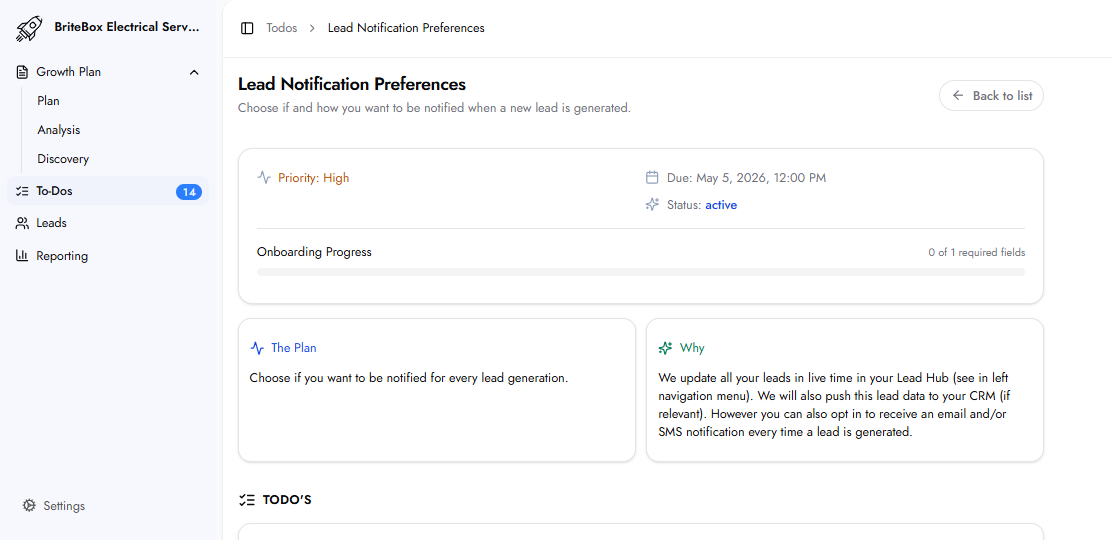
This task defines whether and how personal notifications are received when a new lead is generated through the system.
Why This Matters
All leads captured through platform-managed channels appear automatically in the Leads section of the Customer Hub in real time. If a CRM is connected, leads are also pushed there.
For immediate awareness without logging in, this To-Do enables email or SMS notifications at the moment a lead is generated. Faster awareness supports faster follow-up, which improves conversion rates.
Required Fields
Lead Notifications
Receive Notifications
Select Yes or No.
Yes — enables personal lead notifications
No — leads remain visible in the Leads section, but no external alerts are sent
Notification Method
Notification Method
Select how notifications are received: Email, SMS, or Both.
Notification Emails
Notification Emails
Up to three email addresses can be added to receive notifications when a lead is generated. These may include business owners, sales managers, or other relevant team members.
A "Send test email notification" option is available to verify the setup before submission.
What Happens Next
If enabled, notifications begin as soon as new leads are generated.
Frequently Asked Questions
Where do leads appear if notifications are not enabled?
All leads are available in real time in the Leads section of the Customer Hub. The table supports search and filtering.
If a CRM is connected, is this still needed?
Yes. Leads are automatically pushed to the connected CRM regardless of this setting. This To-Do adds an additional notification layer for immediate awareness.