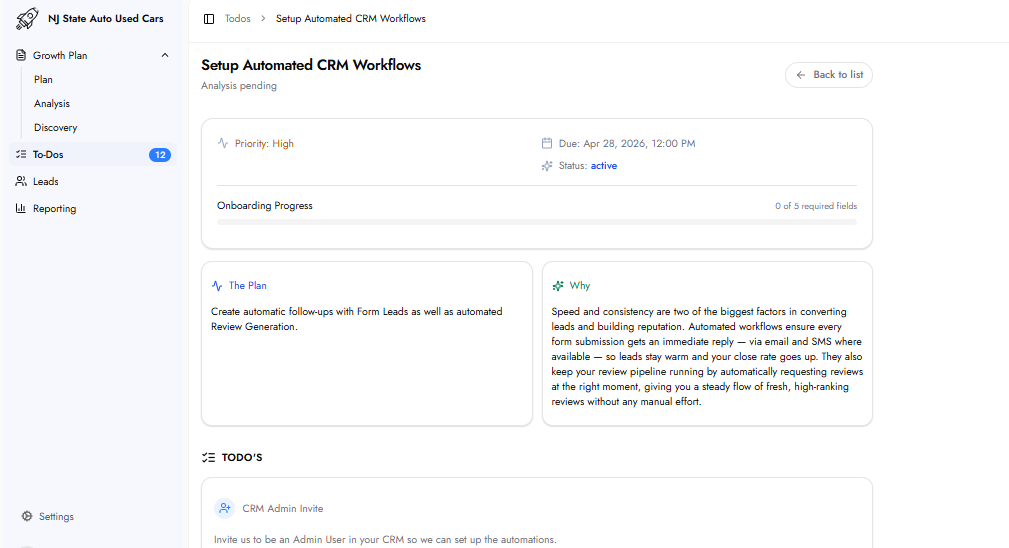
Speed and consistency are key factors in lead conversion and reputation building. Automated workflows remove delays by responding to every form submission instantly via email and SMS.
The review generation workflow creates a consistent flow of new online reviews, which supports local search visibility and improves conversion rates.
The team must be added as an Admin User inside the CRM to build and deploy the automations.
Name: Mplanner
Email: [email protected]
After sending the invite, confirm by clicking the "Mark as Sent" button on the To-Do form.
Status Trigger
The CRM deal or contact status that triggers the review request. This should represent when the job is fully completed.
Examples: Won, Paid, Completed. Multiple statuses can be entered.
Delay (Days)
The number of days to wait after the status trigger before sending the review request. Default is 0.
A delay can be set when there is a gap between the status update and actual job completion.
Example: If payment is received today for a job completed in 14 days, set a delay of 14 days.
Recipients
Email address(es) of team members who should receive notifications when a new form lead is captured. This is typically the person responsible for follow-up.
Lead List / Folder
The specific list, folder, or pipeline inside the CRM where new leads should be added.
Example: Inbound Leads > Marketing
Any additional instructions required for setting up the automations. This field is optional.
Once admin access to the CRM is provided, the team configures and deploys the automated workflows. Tracking elements are also implemented where required. Performance data then begins appearing in the Reporting section of the Customer Hub.
The platform integrates with the existing CRM currently in use. No specific CRM is required.
If no CRM is currently used, this is identified during the Gap Analysis. A CRM solution may be included as part of the plan where required.
Form Lead Notifications in this To-Do define which team members receive internal alerts when a form lead is captured.
The Lead Notification Preferences To-Do controls whether notifications are received for all leads generated across channels.