What is the Settings Section?
The Settings section is accessible from the bottom of the left navigation. It is where business integrations and notification preferences are managed. It contains two sub-sections: Integrations and Lead Notifications.
Integrations
The Integrations sub-section is where marketing platforms are connected to enable automated tracking and optimization. Three integrations are available:
Google Business Profile
Required for Near Me tracking and local SEO services. Provides access to business stats and insights. To connect:
Click the Connect button on the Google Business Profile card.
A Google account selector will appear. Choose the Google account that manages the Google Business Profile.
If the required account is not listed, click Use another account and sign in with the correct credentials.
Once selected and authorized, the button updates to show Connected.
Note: The selected Google account must have manager or owner access to the Google Business Profile.
Google Search Console — Required for organic search performance tracking and PPC services. Connect using the Connect Search Console button.
Google Ads — Required for PPC campaign management, optimization, and performance tracking. Connect using the Connect Google Ads button.
The Integration Status bar at the bottom shows how many of the three integrations are currently connected. Connecting all integrations enables full tracking and optimization across the system.
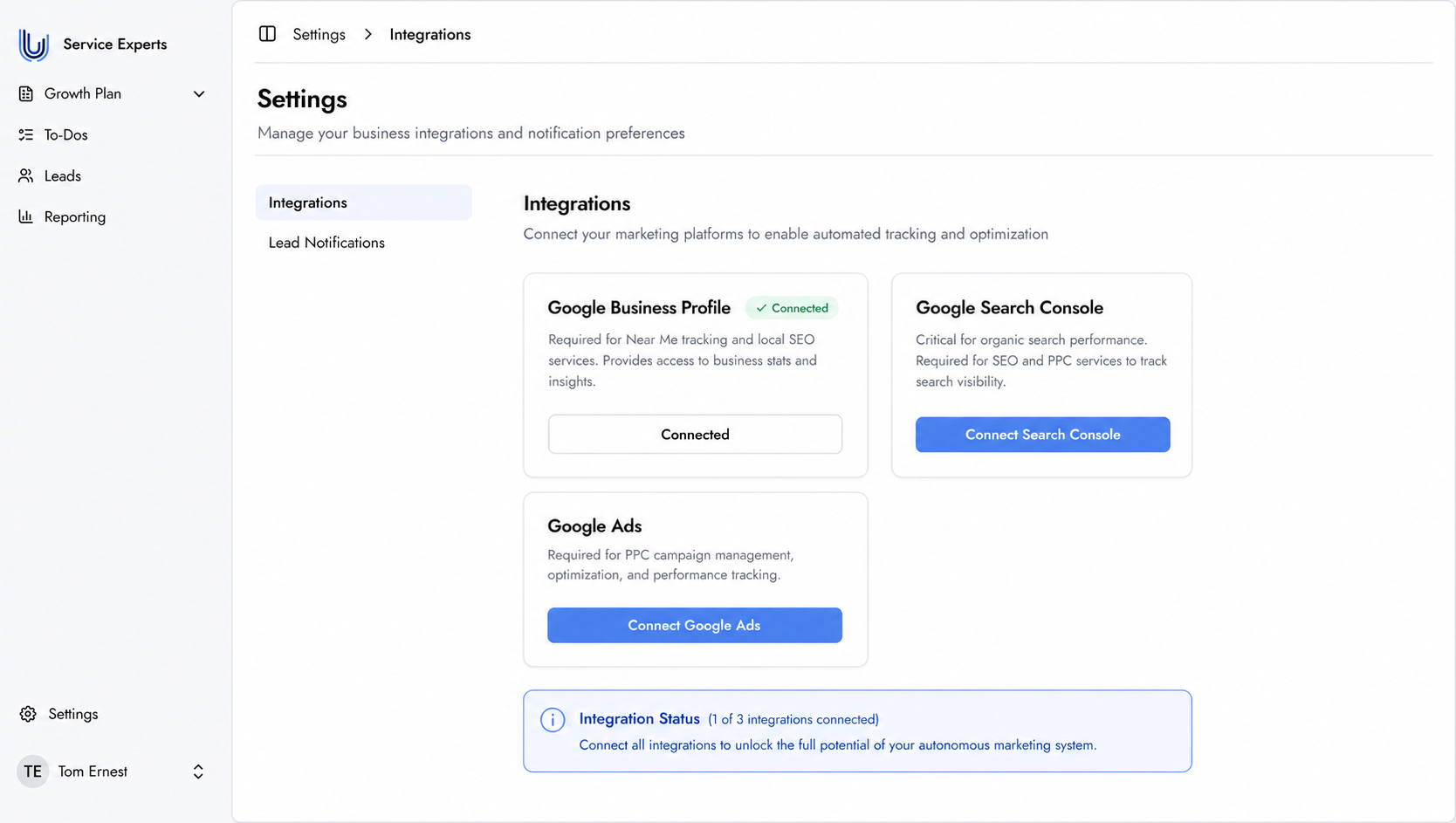
The Integrations page — connect your marketing platforms to enable full tracking and optimization.
Lead Notifications
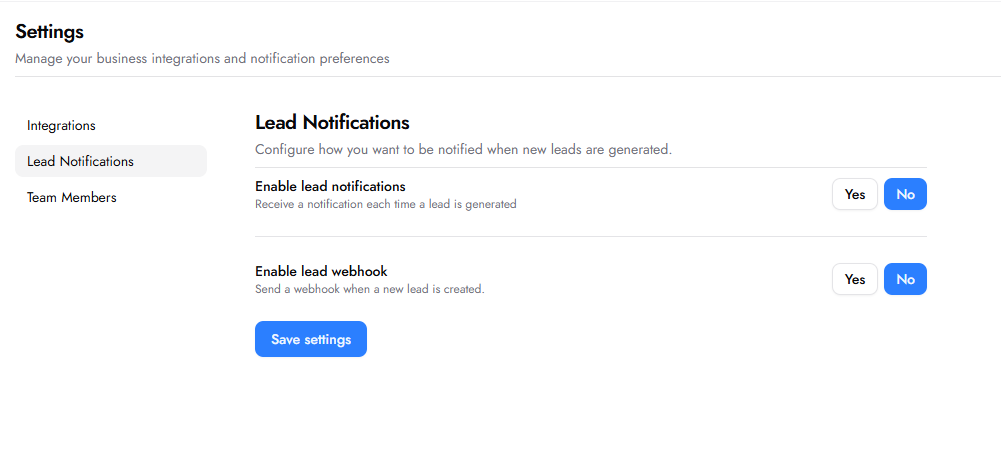
The Lead Notifications sub-section lets you configure how you want to be notified when new leads are generated.
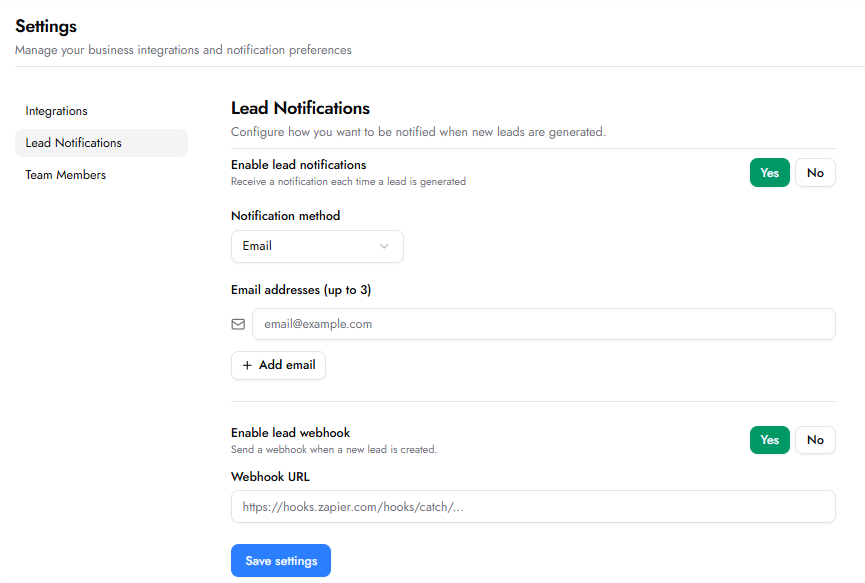
Enable lead notifications — toggle Yes or No. When set to Yes, the following fields appear:
Notification method — choose how you want to receive notifications. Options: Email, SMS, or Both.
Email addresses (up to 3) — add up to 3 email addresses to notify every time a lead is generated. Use the + Add email button to add additional addresses.
Enable lead webhook — toggle Yes or No. When set to Yes, a Webhook URL field appears. Enter the webhook URL from your automation platform (e.g. Zapier, Make, or any other system that accepts webhooks). This sends all new lead data directly to your connected system in real time, allowing you to route leads into any external CRM, spreadsheet, notification tool, or workflow — without any manual effort.
Click Save settings to apply any changes.
Frequently Asked Questions
Can integrations be connected at any time?
Yes. Integrations can be connected or updated at any time from the Settings section. Some integrations are also connected as part of specific To-Dos — for example, Google Business Profile may be connected within Near Me SEO or Tracking-related To-Dos.