The Prices section is where you manage the markup structure that determines how Growbotik's wholesale product costs are translated into the retail prices your customers see in their Growth Plans. Every product Growbotik deploys has a wholesale cost. The markup you configure here controls the retail price charged to each customer, and therefore the margin your business generates.
Pricing is organized into Pricing Groups. Each group represents a distinct pricing configuration — a defined markup percentage applied to all products — that can be assigned when generating Growth Plans for different customer segments.
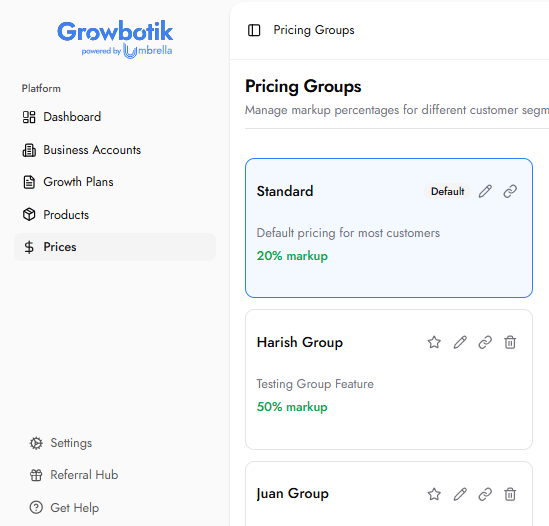
A Pricing Group is a named configuration that sets a default markup percentage across all Growbotik products. When a Growth Plan is built for a customer, the retail prices in that plan are calculated from the wholesale costs using the markup percentage of the assigned pricing group.
You can create as many pricing groups as your business requires. A common use case is creating separate groups for different customer segments, markets, or service tiers — each with its own markup.
Every account has a Default pricing group. When no specific group is selected during Growth Plan creation, the default group is used. The default group is marked with a Default badge in the group list.
The prices you configure here are not just billing settings — they are inputs the Growbotik marketing system actively uses when building Growth Plans. When a Growth Plan is generated for a customer, the system reads the retail prices from the assigned pricing group to determine what services can be included, how budget is allocated across channels, and what revenue outcomes are realistic given the plan's composition.
This means that inaccurate or placeholder pricing produces Growth Plans with unrealistic projections. The plans Growbotik builds are only as accurate as the pricing data behind them. Configuring your pricing groups carefully — with markup percentages that reflect your actual pricing strategy — ensures the system generates plans that are both profitable for your business and credible to your customers.
To create a new pricing group, click the + Create Pricing Group button in the top right of the Prices page. The following fields are required:
Group Name: A unique name to identify this pricing group. This name appears in the group list and is used when assigning a group to a Growth Plan.
Description
Description: An optional internal description of this group. Use this to note which customer segment, market, or use case this group is intended for. This is for your reference only and is not visible to customers.
Markup Percentage: The default markup percentage applied to all product wholesale prices within this group. All retail prices shown to customers in a Growth Plan assigned to this group are calculated from this percentage.
The higher the markup percentage, the higher the retail price in the customer's Growth Plan. As a general guide:
50% to 100% — the recommended range for most businesses. Maintains a healthy margin while remaining competitive.
Below 50% — not recommended. Margin becomes thin and leaves little room for operational costs or adjustments.
Above 100% — use selectively. May be appropriate for premium positioning in specific markets.
The right markup for each group depends on your pricing strategy, the customer segment you are targeting, and the market you operate in.
Once all fields are complete, click Create Group. The new group appears immediately in the group list.
To edit an existing pricing group, click the pencil icon on the group card. The Edit Pricing Group modal opens with the same fields available during creation: Group Name, Description, and Markup Percentage.
The Edit modal also includes a Set as default pricing group checkbox. Checking this option and saving makes the selected group the new default — it will be used automatically when no group is explicitly chosen during Growth Plan creation.
Click Update Group to save any changes. Changes to the markup percentage take effect immediately and are reflected in the product pricing table on the right panel.
Each account has one default pricing group at any time. The default group is used when a Growth Plan is created without explicitly selecting a specific group.
There are two ways to set a group as the default:
Click the star icon on any group card. The group is immediately set as the default and the Default badge appears on it.
Open the Edit Pricing Group modal, check the Set as default pricing group checkbox, and click Update Group.
The Sample Plan is a pre-configured demo pricing group included in every account. It is marked with a Demo badge in the pricing groups list and comes with a default 50% markup already applied across all products. The Sample Plan is designed to help you learn the full Growbotik chat flow from start to finish without affecting your live pricing groups or customer data.
Opening the Sample Plan's chat link launches the standard Growbotik chat flow with a built-in Demo Coach. At each step of the conversation, the Demo Coach appears in a highlighted panel explaining what that step does, why the chat is asking the question, and providing a pre-filled answer based on a fictional sample business. A "Click to answer on behalf of the user" button lets you submit the pre-filled response instantly and move to the next step, allowing you to complete the entire discovery flow quickly without entering any information manually.
The Demo Coach walks you through every stage of the chat, from the opening question through to the completed Growth Plan. Use it to learn how the discovery process works, train new team members, or revisit the flow at any time.
The Sample Plan operates independently from your active pricing groups. Generating a Growth Plan through the Sample Plan does not impact your real customer data or billing. You can use it as many times as needed.
Selecting any pricing group displays its full product pricing table on the right side of the page. This table shows every Growbotik product and its associated fees, with the retail price calculated from the group's markup percentage.
The table contains the following columns:
Product — the name of the Growbotik product or service.
Label — the specific fee type or tier within that product (for example, Monthly subscription, One-time setup fee, or a tier name such as Professional).
Wholesale Price — the base cost Growbotik charges before markup is applied.
Retail Price — the price the customer sees, calculated by applying the group's markup to the wholesale price. Displayed in green.
Billing — how this fee is charged: Monthly, One-Time, Metered, or Result-Based.
The following products and fee types are included in every pricing group:
Monthly subscription — the ongoing monthly cost of the AI Chatbot being active on the customer's website. Billed monthly.
One-time setup fee — covers the creation, prompt engineering, and human quality assurance of the AI Chatbot. Billed once.
One-time setup fee — covers the build, configuration, and human quality assurance of the AI Voice Agent. Billed once.
Setup fee — covers the deployment of automated workflows inside the customer's existing CRM. Billed once.
Professional — the base tier. Covers listing the business across approximately 70 directories, locking listings to prevent unauthorized changes, and ensuring consistent signals for search and AI discovery. Billed monthly.
Professional and Healthcare — includes everything in Professional plus healthcare-specific directories. Billed monthly.
Ultimate — includes additional features beyond the Professional and Healthcare tier. Billed monthly.
Ultimate and Healthcare — the highest tier, combining Ultimate features with healthcare-specific directories. Billed monthly.
Monthly subscription — the ongoing cost of the HubOne CRM for businesses that do not have an existing CRM. Billed monthly.
Campaign Budget — the advertising spend allocated to Facebook Brand Awareness campaigns. This is a variable, metered cost based on the actual campaign budget.
Management fee — the ongoing monthly fee for managing and optimizing the Google Local Service Ads campaign.
Setup fee — a one-time fee covering the initial configuration and launch of the campaign.
Metered — the variable ad spend component, billed based on actual usage.
Result-Based — the management fee for Google PPC Ads, which scales based on the advertising budget the customer is spending. This fee is presented as a range because it varies with the budget level.
Metered — the variable ad spend component, billed based on actual usage.
One-time payment — an initial setup fee for launching the Near Me SEO campaign. Billed once.
Monthly — the ongoing monthly fee for maintaining and optimizing the Near Me SEO campaign.
Professional — the monthly fee for the review generation and management service.
Result-Based — the management fee for SEO Performance, presented as a range and billed based on results.
Setup fee — a one-time fee for configuring the full tracking system, including call tracking numbers, dynamic number insertion, and pixel installation. Billed once.
AI transcription per minute — a metered cost for AI-generated call transcripts, charged per minute of transcribed audio.
SMS per missed lead — a metered cost for the automated SMS sent to prospects when a call is missed or goes to voicemail.
Tracking per lead — a metered cost charged for each lead captured and attributed by the tracking system.
Medium-sized website — the monthly fee for the accessibility widget installed on the customer's website.
One-time payment — the fee for the website conversion optimization engagement. Billed once.
In addition to the group-level markup, you can override the markup on individual products within a pricing group. This allows you to apply a different margin to specific products without changing the default markup for the rest of the group.
To edit per-product markups, click the Edit Per-Product Markups button in the top right of the product pricing table. The table switches to edit mode, adding a Markup % column with an editable input field for each product row, along with a Custom tag.
Enter the desired markup percentage for any product you want to override. Products that are not edited continue to use the group default markup. Once all adjustments are made, click Save Markups to apply the changes. The retail prices update immediately to reflect the new values. Click Cancel to discard any unsaved changes.
Per-product overrides are useful when certain products are priced differently for a specific market or customer type, for example if your standard markup applies to most services but you price one product at a significantly different margin.
Each pricing group has a unique shareable chat link. When a prospect opens this link, they are taken directly into the Growbotik prospect chat experience — a conversation that leads through a business analysis and culminates in a custom 12-month Growth Plan built using the retail prices of that pricing group.
To copy the chat link for a group, click the link icon on the group card. The link is copied to your clipboard and can be distributed in any channel — placed on a website button, embedded in an email, shared via direct message, or included in any other outreach.
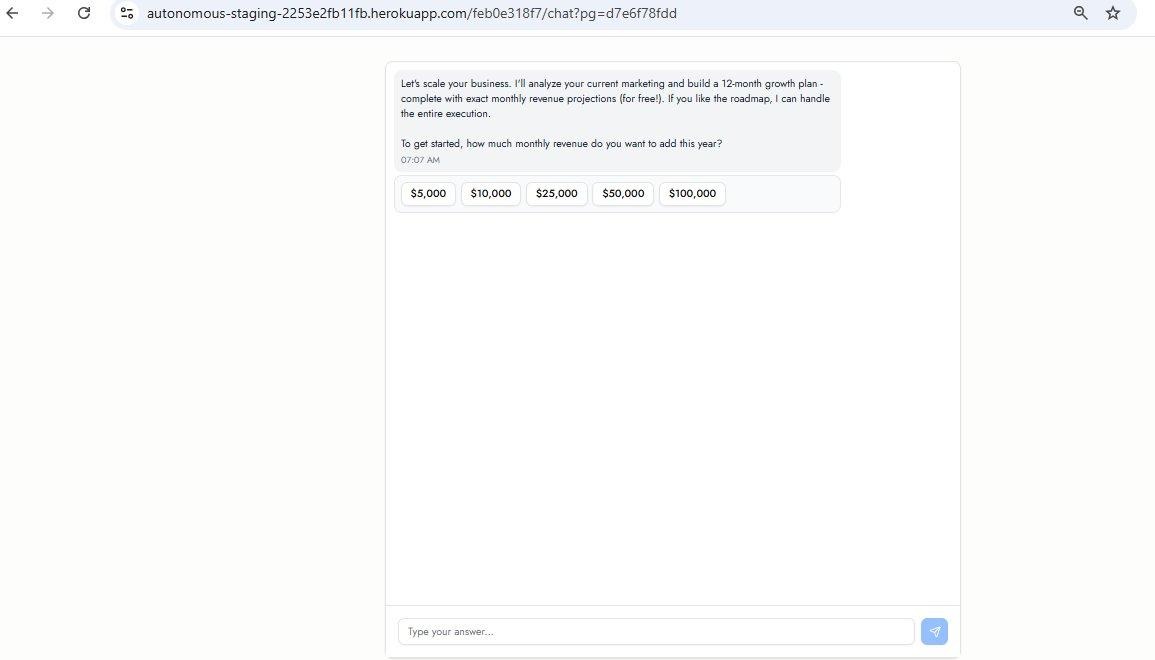
The pricing group assigned to a link determines the retail prices the Growbotik marketing system uses when building the Growth Plan for that prospect. Different groups produce Growth Plans with different price points, allowing you to tailor the experience for different segments.
To delete a pricing group, click the trash icon on the group card. A confirmation modal appears asking you to confirm the deletion. Click Delete to permanently remove the group, or Cancel to go back.
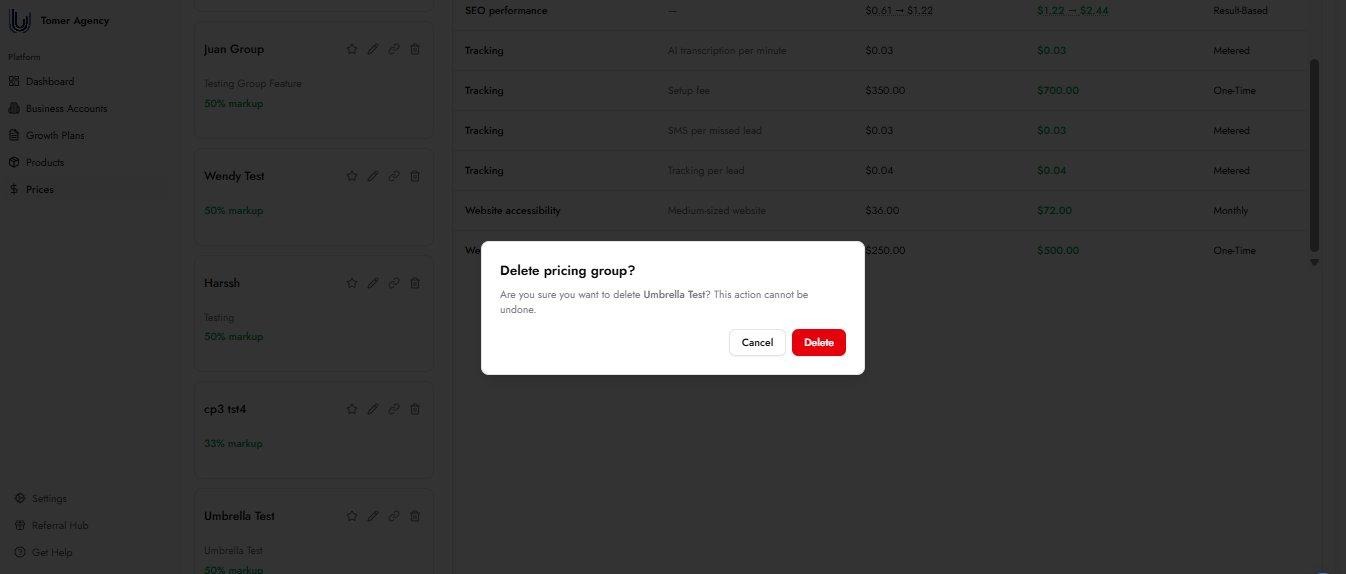
Deleting a pricing group is permanent and cannot be undone. The default pricing group cannot be deleted. To delete a group that is currently set as the default, first assign the default designation to a different group.
What markup percentage should I use?
The right markup depends on your pricing strategy and the margins your business requires. A markup of at least 50% is generally recommended to maintain a healthy agency margin. The appropriate level for each group depends on the customer segment, market conditions, and how you position your services.
Can I have different markup percentages for different customers?
Yes. Create a separate pricing group for each customer segment you want to price differently. Each group has its own default markup and can have per-product overrides. Assign the appropriate group when generating a Growth Plan for each customer.
What is the difference between group-level markup and per-product markup?
The group-level markup is the default applied to all products in that group. A per-product markup overrides the default for a specific product only. All other products in the group continue to use the group default. This allows precise control over individual product margins without creating an entirely separate group.
Can I rename a pricing group?
Yes. Click the pencil icon on the group card, update the Group Name field, and click Update Group. The new name takes effect immediately.
What does Metered billing mean?
Metered billing means the cost is variable and based on actual usage — for example, the number of AI transcription minutes consumed, SMS messages sent, or leads tracked in a given period. Metered fees do not have a fixed wholesale price; they are calculated based on volume.
What does Result-Based billing mean?
Result-Based billing means the fee scales with a performance-linked variable, such as the advertising budget the customer is spending. The wholesale price is shown as a range because the actual cost depends on the customer's budget level. The retail price shown in the table reflects the same range with the group markup applied.