Business Accounts is the central section of the Partner Hub where you manage every client business under your agency. Each business account represents one of your clients — from the moment they enter Discovery through to full plan execution.
From Business Accounts, you can create new client records, track their current status, enter their Customer Hub directly to support them, and manage or remove their account. It is the operational home for your entire client roster.
The Business Accounts section is accessible from the left navigation of the Partner Hub. The list displays all businesses currently on your account in a searchable table with the following columns:
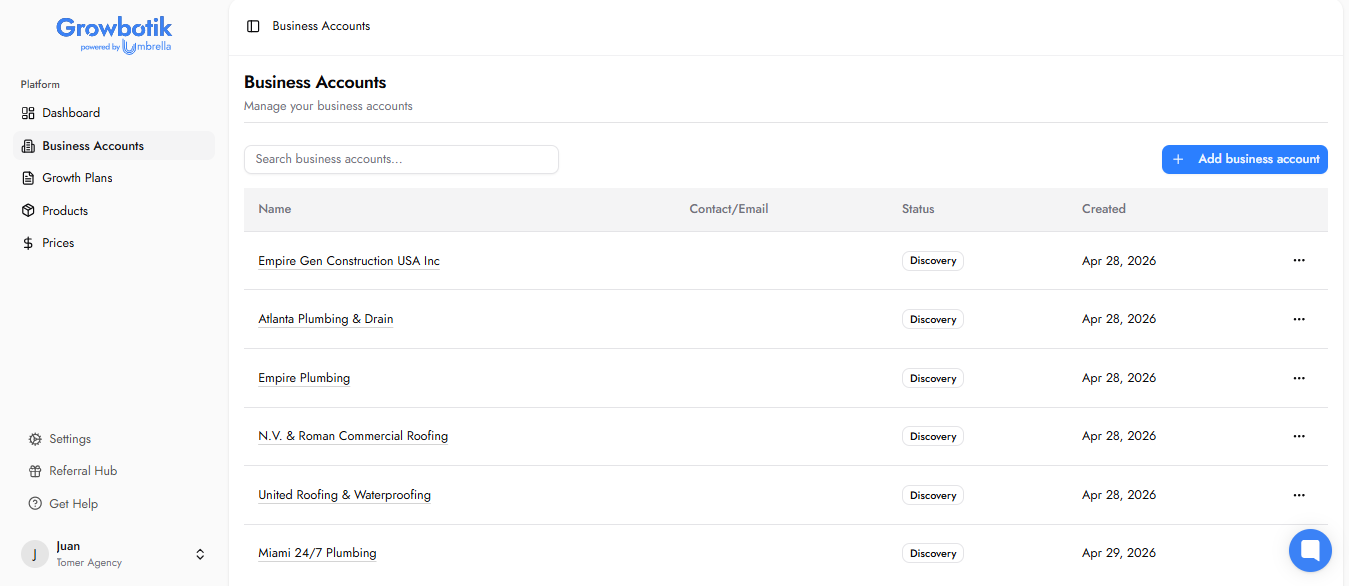
Name — the business name as entered when the account was created.
Contact / Email — the primary contact name and email address for that business.
Status — the current lifecycle stage of the business account (see Status Types below).
Created — the date the business account was added to your Partner Hub.
Each row has a three-dot menu (⋯) on the right for quick access to additional actions.
Use the search bar at the top to find any business by name. To create a new business account, click the + Add business account button in the top right.
Every business account has a status badge that reflects where that client currently sits in the Growbotik workflow. The status is set when the account is created and can be updated at any time.
Discovery: The business is in the initial research and analysis phase. A Growth Plan has not yet been created or activated.
Additional status types may appear as your client progresses through the Growbotik workflow.
Clicking on any business in the list opens its account page. This page shows the business name, website, and current status, along with two primary actions:
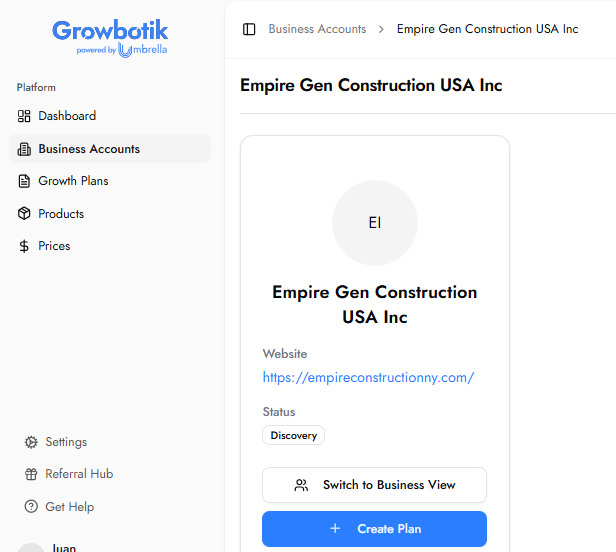
Switch to Business View — enters that client's Customer Hub directly, allowing you to navigate their account as if you were the client. Use this to help with To-Dos, review their reports, check their leads, listen to call recordings, and provide any hands-on support they need.
Create Plan — initiates the creation of a Growth Plan for this business. Available once the Discovery phase is complete.
The three-dot menu (⋯) in the top right of the account page provides two additional options:
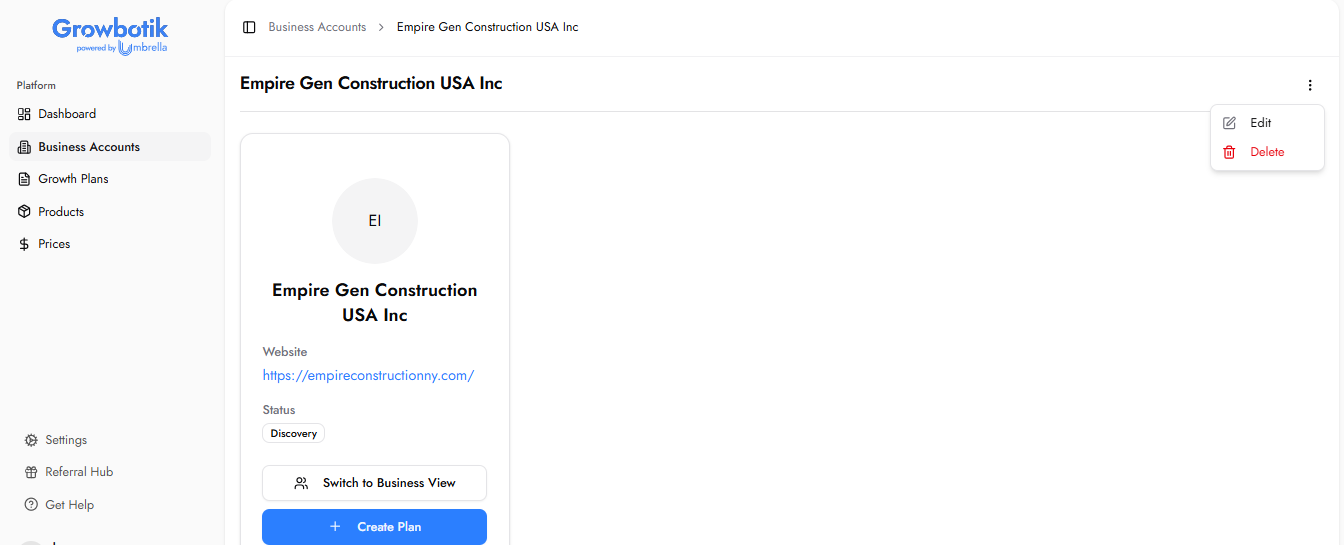
Edit: Opens the business account form so you can update any of the account details.
Delete: Permanently removes the business account from your Partner Hub. This action cannot be undone.
Switch to Business View allows you to enter any client's Customer Hub and navigate it exactly as they would. Once inside, you have full visibility into everything that client can see and do — their To-Dos, Growth Plan, Leads, Reports, and Settings.
Use this feature to:
Help a client complete their To-Dos.
Review their reporting and lead data on their behalf.
Listen to call recordings and read AI transcripts.
Identify issues or gaps in their setup and resolve them proactively.
Provide hands-on support without needing the client to share their screen or login credentials.
To exit Business View and return to your Partner Hub, use the exit or switch back option available within the Business View interface.
Add a new business account whenever you onboard a new client or want to associate a specific client with a pricing group you have already configured. You can also add a business account in advance of sending a client their onboarding link, so the record is already in place when they begin Discovery.
To add a new business account, click + Add business account from the Business Accounts list. This opens the New Business Account form.
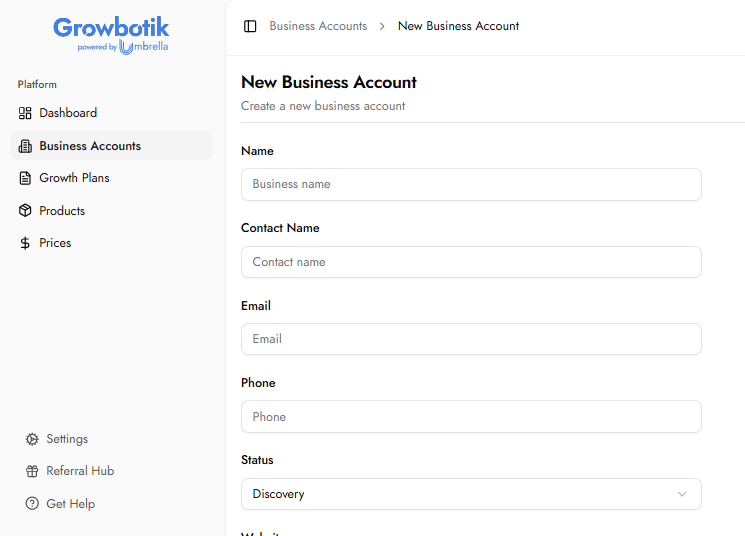
Name: The business name. This is how the client will appear in your Business Accounts list.
Contact Name: The full name of the primary contact at the business — typically the owner or decision-maker.
Email: The primary email address for the contact. Used for communications and account association.
Phone: The contact's phone number.
Status: The current lifecycle stage of this business. Defaults to Discovery. Select the appropriate status for where this client currently sits in your workflow.
Website: The client's primary website URL.
Address: The physical business address.
Once all fields are complete, click Create to save the business account. Click Cancel to discard and return to the Business Accounts list.
Adding a business account manually gives you a client record in your Partner Hub immediately and allows you to associate a specific pricing group with that business from the start. Sending a catch-all link is a more passive approach — the client enters Discovery through the link and the business account is created automatically on their end. Both approaches result in a business account; the manual method gives you more upfront control over pricing and setup.
Yes. Switch to Business View is available on every business account page regardless of the client's current status. You can enter a client's Customer Hub at any stage — Discovery, active plan, or otherwise.
Inside Business View you have access to everything the client can see and do in their Customer Hub. This includes their To-Dos, Growth Plan, Analysis, Leads, Reporting, and Settings. You can help them complete To-Dos, review performance data, listen to call recordings, read AI transcripts, and take any action needed to support their account.
Yes. Open the business account page and click the three-dot menu (⋯) in the top right, then select Edit. You can update any of the fields — name, contact details, status, website, or address — at any time.
Deleting a business account permanently removes it from your Partner Hub. This action cannot be undone. If you need to remove a client's account, contact your account manager before proceeding to ensure no active campaigns or data are affected.
No. Entering Business View is completely invisible to the client. They will not receive any notification or indication that you have accessed their Customer Hub.
There is no limit. You can add as many business accounts as you need to your Partner Hub.
Once a Growth Plan is created for a business account, the client moves into the execution phase. Their Customer Hub becomes fully active with their To-Do list, Growth Plan, and Analysis populated. You can continue to access their hub at any time via Switch to Business View.