You need:
A Growbotik account.
A paid Symphony account, bought through Growbotik. This is the yearly Basic plan. You buy it at wb.growbotik.com (Step 1 below). The free Symphony plan does not have enough credits to run the automation.
An email mailbox, ideally on your own business domain, such as [email protected]. It is very hard to prospect from an address like [email protected]. If you do not have a domain, you can buy one at domain.growbotik.com. The Growbotik pack sends email through Gmail, so use a Gmail or Google Workspace mailbox.
A few leads that are ready for outreach: leads with an analyzed website and at least one contact. Then Maya can start working from her very first run. See Which Leads Symphony Contacts.
Step 1: Go to wb.growbotik.com and submit your email.
Step 2: Follow the link to Symphony and create your Symphony account. Use an email that does not already have a Wix account.
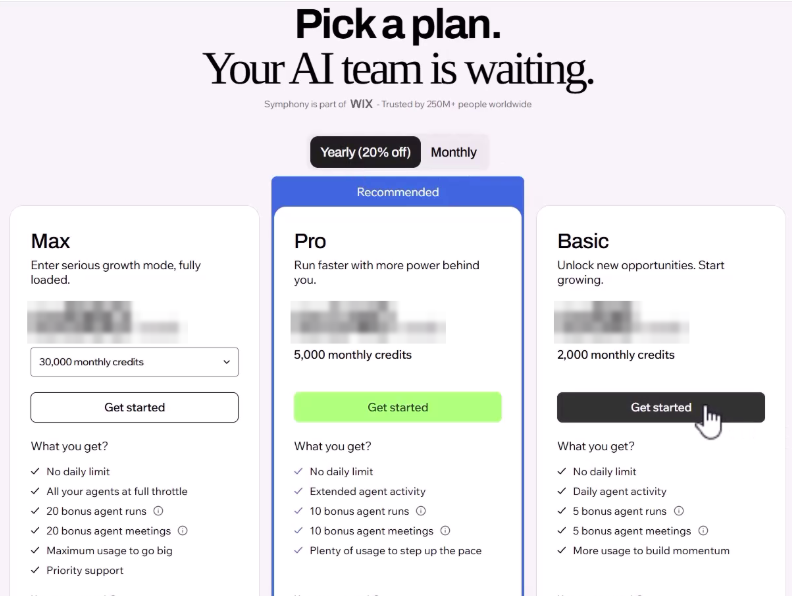
Step 3: Choose Yearly and the Basic plan. Basic includes 2,000 monthly credits. It is enough to start, and you can upgrade later.
Step 4: Complete the payment.
Prices may appear in your local currency, depending on where you are. When the payment is done, the bottom left of Symphony shows Basic and 2,000 monthly credits.
Step 1: In Growbotik, click Leads in the left navigation.
Step 2: Enter the email you used to buy Symphony and click Send verification email. It does not have to be your Growbotik email.
Step 3: Open the email and click the verification link. The link expires after 3 days.
Once you verify, Leads opens for your whole agency. A new purchase can take a little while to reach us. If Leads is still not active after 24 hours, contact support and attach your Wix receipt.
Do this before you install the Growbotik pack.
Symphony runs its schedules in your computer’s time zone. There is no separate time zone for each campaign. If you ask Maestro to change the time zone, or change it in a routine, Symphony may say it was updated, but it keeps using your computer’s time zone.
If you live in one time zone and prospect in another, change your computer's time zone to the one you prospect in. For example, if you live in the UK and prospect in the US, set your computer to US Eastern or Pacific time. Otherwise, Maya sends emails during UK business hours, while your US leads are still asleep.
Windows: Settings > Time & language > Date & time > Time zone.
Mac: System Settings > General > Date & Time > Time zone.
If you prospect in your own time zone, skip this step.
Step 1: In Symphony, click Account at the bottom of the left navigation and open Connectors.
Step 2: Find Gmail and click Connect.
Step 3: Choose the mailbox you will prospect from and approve the access.
Gmail now shows Connected. Do not skip this step. Without it, Symphony sends email from a generic Wix address, and you cannot prospect from that.
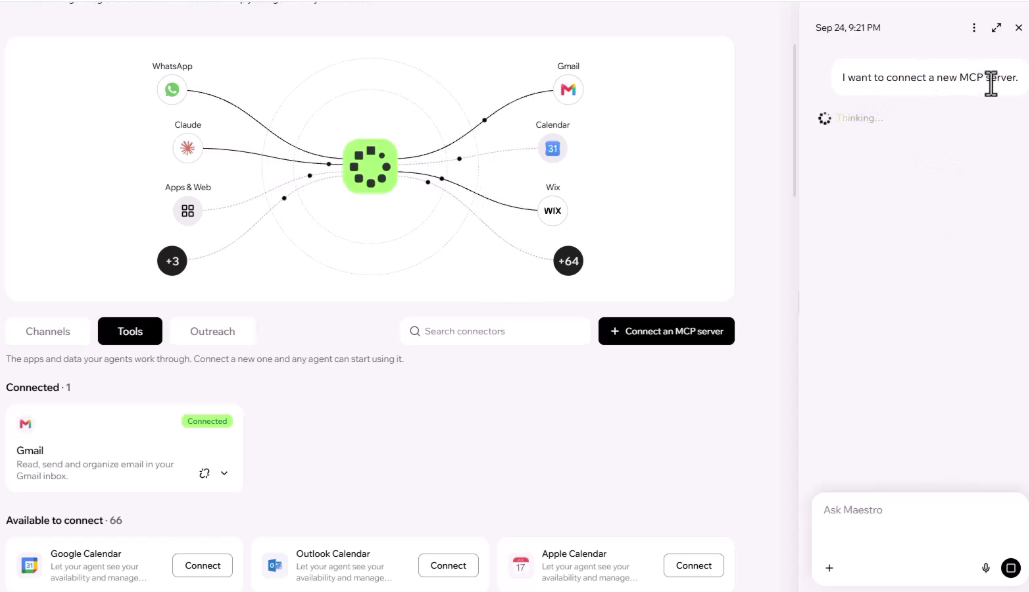
Step 1: In Connectors, click Connect an MCP server. A chat with Maestro opens.
Step 2: When Maestro asks for the server address, paste https://app.growbotik.com/mcp and send it.
Step 3: Maestro replies with an Authorize Growbotik link. Click it.
Step 4: On the Growbotik authorization page, approve all the permissions. The connection is made for your agency.
Step 5: Go back to the chat. Maestro confirms that Growbotik is connected.
Maestro may then offer to set things up for you. Skip that. The Growbotik pack in the next step sets up everything.
Step 1: While you are logged in to Symphony, open the Growbotik pack install link. If clicking it does not open Symphony, copy the link and paste it into your browser's address bar.
Step 2: Symphony opens and shows that the Maya Growbotik sales outreach pack is now in your Symphony. Maestro walks you through the rest.
Step 3: Answer Maestro's questions. Maya sends emails in your name, so these must be right:
Your time zone, for example "Eastern US".
Your name.
Your agency name.
Maestro may also ask for a phone number, so it can text you if something goes wrong. This is optional. Maestro also emails you.
Step 4: If Maestro asks about Growbotik, tell it the MCP is already connected. If it says the authorization is still pending, click the authorization link again and approve it.
Step 5: Wait while Maestro builds everything: your space (named after your agency), Maya and her reviewer, the no-approval rule, and two routines. This usually takes a few minutes, and sometimes 10 or more.
Step 6: Before the routines start, Maestro tells you that each background run uses a sub-agent credit and asks if that is OK. Reply yes. Maestro shows this message on every plan.
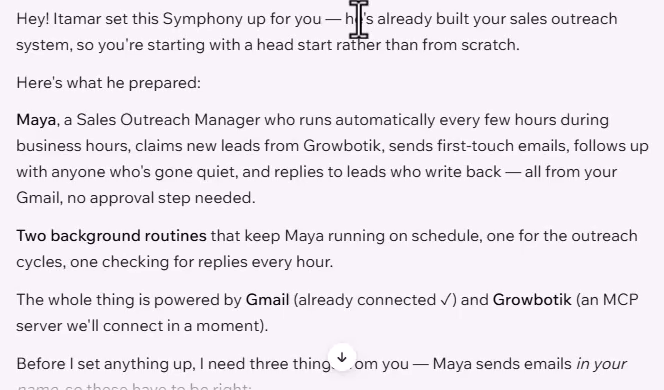
Maestro confirms that everything is set up. You now have:
Maya, your prospecting agent.
The reply checker, which checks your inbox for replies every hour.
The no-approval rule, so Maya sends emails without asking you each time.
Maya runs automatically every few hours during business hours. She claims new leads from Growbotik, sends first-touch emails, follows up with leads who go quiet, and replies to leads who write back, all from your Gmail. To see what she is doing, see Reviewing Symphony Activity.
Symphony Basic includes 2,000 credits a month and a set number of sub-agent runs each period. After those runs are used, each run draws from your AI credits. You can see your usage at the bottom left of Symphony.
The Growbotik pack is built to use as few credits as possible. Light functions check your inbox, Maya is woken up only when there is work to do, and most of the heavy lifting happens in Growbotik, not in Symphony.
AI agents are not regular software. They do not always do the same thing the same way, so sometimes a step does not finish. Treat Maestro like a team member you gave a job to:
If setup seems to take too long, ask Maestro: "Is everything set up? What is left?" It checks and finishes the job.
Whenever something does not work, ask Maestro what happened and how to fix it.
Check the Tasks card. You find it when you open your workspace or an agent from the left navigation. It lists tasks that ran successfully, failed, or are still pending. See Reviewing Symphony Activity.
Which Symphony plan do I need?
The yearly Basic plan, bought through wb.growbotik.com. Basic is enough to start, and you can upgrade later. The free plan does not have enough credits.
Can I buy the monthly plan?
No. Buy the yearly plan through wb.growbotik.com.
Can I use my existing Wix account?
No. Sign up for Symphony with a new email through wb.growbotik.com and choose the yearly plan.
Does the email I use for Symphony have to match my Growbotik email?
No. You can use any email. Just enter the same email when you activate Leads.
I bought Symphony, but Leads is not active. What do I do?
Check that you entered the exact email you used to buy Symphony. A new purchase can take a little while to reach us. If Leads is still not active after 24 hours, contact support and attach your Wix receipt.
My Symphony plan says Free. Why?
The bottom left of Symphony shows the plan of the account you are logged in to. If it says Free Plan, this account does not have the paid plan. Check that you are logged in with the email you used to buy Symphony. If you are, contact support and attach your Wix receipt.
Why does Maestro ask me about credits?
Each background run uses a sub-agent credit, and Maestro asks you to confirm this on every plan. Reply yes.
How long does setup take?
Usually a few minutes, and sometimes 10 or more. If it seems stuck, ask Maestro what is left.
Which mailbox should I connect?
A Google Workspace mailbox on your business domain, ideally on a subdomain you use only for outreach, such as [email protected], so your main domain stays protected. Warm up a new mailbox for 2 to 3 weeks before Maya starts sending.
Can I connect more than one mailbox?
Symphony sends from one connected mailbox.
Can I use Instantly, Zoho or Outlook?
The Growbotik pack sends through Gmail. Connect a Gmail or Google Workspace mailbox.
Can I switch mailboxes in the middle of a sequence?
We don’t recommend it. Maya sends follow-ups and reads replies in the mailbox she started with.
Maestro asks me for an OAuth client ID.
You don’t need one. Check that the address you gave Maestro is exactly https://app.growbotik.com/mcp. Remove the Growbotik connector, connect it again, and approve the Authorize Growbotik link. If Maestro still asks, contact support.
Does my computer need to stay on?
No. Maya runs in Symphony on a schedule, even when your computer is off.