Growbotik builds a complete new website for a lead, using the business's existing website, its Google Business Profile, or its Facebook and Instagram pages. The website is a mockup: a finished design that you send as a complimentary example to start a conversation. When the owner wants it, they purchase Wix hosting through your link, and the Growbotik team puts the site live.
Generate a website after the business responds positively to your initial outreach. If you use Symphony, it sends the outreach for you, and when a business responds positively, it requests Growbotik to generate the website automatically.
The business has a website: Growbotik uses its content, logo, and pictures. There is nothing to do.
The business has no website: Growbotik uses the pictures on its Google Business Profile. Open the profile and check that it has a few good pictures.
There are not enough pictures: Add the business's Facebook page or Instagram account.
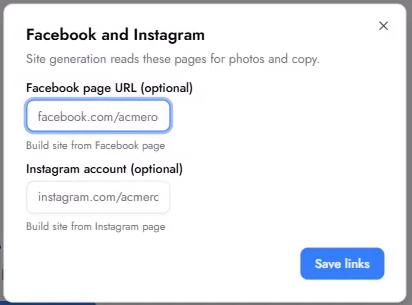
To add them:
Step 1: Open the lead.
Step 2: Click the pencil icon next to the business name.
Step 3: Enter the Facebook page URL or the Instagram account.
Step 4: Click Save links.
It is worth the extra minute. Owners want to see their own pictures on the website. It shows that the site was built specifically for their business, not copied from a template. When Growbotik cannot find enough pictures, it uses stock images, and the result is less effective.
Step 1: In the lead list, tick the businesses you want to generate a website for.
Step 2: Click Generate websites.
You can also open a lead and click Generate website. Each website takes a few minutes, and Growbotik builds up to 3 at a time. You do not need to wait on the page.
The business's own logo, pictures, and information, when they are available.
A color theme chosen for the industry. For example, an HVAC company gets orange and black, and a law firm gets a different theme.
A conversion widget. This is a short step-by-step flow, such as a free estimate for a contractor, a free case evaluation for a lawyer, or a quote finder for a remodeler or a dentist. It gets visitors to engage and leave their details, which become new leads for the business. The AI decides where on the page to place it.
Open the website in the lead's workspace. Above the preview, you can switch between desktop and mobile, open the site in a new tab, or download it.
Always look at the website before you send it. AI is not deterministic, and sometimes it makes small layout mistakes, such as showing the phone number and a separate call button in the same spot.
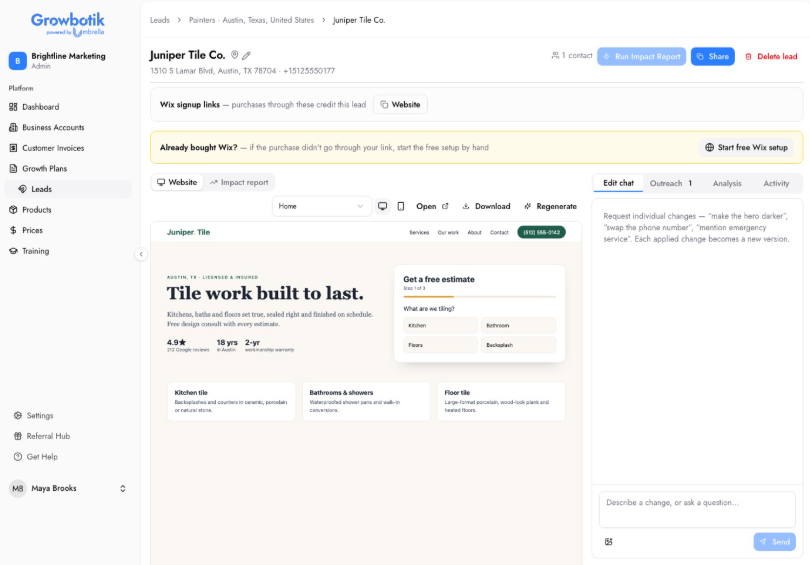
The Edit chat tab is for light changes to text and layout. It is not a full website editor.
Step 1: In the Edit chat tab, describe the change in plain words. For example:
"Move the 'No heat or no cool right now?' card up to the middle of the hero section."
"In the hero section, remove the Call now for emergency service button and the Get free estimate button."
"Change the color theme from orange and black to yellow and red."
Step 2: Click Send.
Each change creates a new version (v1, v2, and so on). Click a version to compare them. Earlier versions are always kept.
If you do not like the design at all, click Regenerate to get a completely different design.
If you see the same mistake again and again across websites, tell the Growbotik support team so we can fix it.
The website is a complimentary mockup and a conversation starter. Almost every owner comes back with feedback: "I like it, but I would like to change this and add these pages." Fix what is clearly wrong and send it.
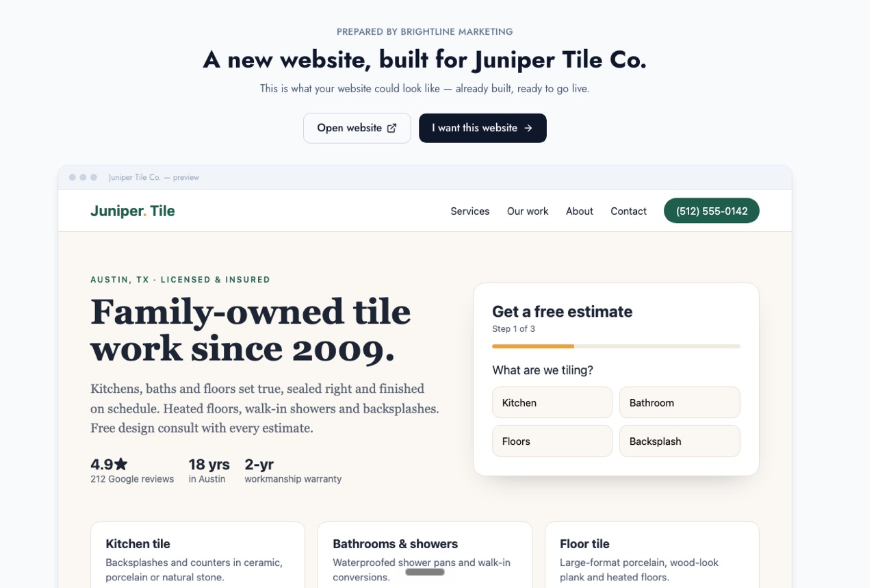
Click Share in the lead's header and send the link by email, text, or direct message. If you use Symphony, it can send the link for you.
The owner sees:
Their new website, which they can open full screen.
What we found on your current site: The summary of the website analysis, when the business has an existing website.
An I want this website button at the top of the page and a Get this website live button at the bottom. Both take the owner to purchase Wix hosting through your link.
Should I generate a website for every lead?
No. Generate websites only for businesses that have responded positively to your outreach.
The business has no website. Can I still build one?
Yes. Growbotik uses the pictures from its Google Business Profile, or from Facebook and Instagram if you added them.
How do I change the design?
For small changes to text or layout, use the Edit chat. For a completely different design, click Regenerate.
Can I go back to an earlier version?
Yes. Every change creates a new version, and earlier versions are always kept. Click the version you want.
Is this a full website builder?
No. It builds mockups that you share with the business as a complimentary example. When the owner decides to move forward, the Growbotik team puts the website live and handles any additional changes.
Is the chatbot on the preview included?
No. The conversion widget stays on the live website. The chatbot and the accessibility widget on the preview show products you can sell: AI Chatbot and Website Accessibility.