A lead list is a group of businesses that Growbotik finds for you. At this stage, a lead is a business that could become a prospect. You know its niche and its area, but not yet whether it needs your help. The next steps, website analysis and contacts, tell you which businesses are worth pursuing.
There are two ways to create a list:
By search: Enter a niche, a city, and how many businesses you want. Growbotik finds them for you.
By hand: Add a business you already know and put it in a new list.
Step 1: In the left navigation, click Leads.
Step 2: In Niche, type the kind of business you want, for example "HVAC".
Step 3: In City, choose the city, for example "Atlanta, Georgia, United States".
Step 4: In Businesses, choose how many businesses you want. Bigger lists take a little longer to find. If you know you want to focus on this niche in this city, you can order 100 at once.
Step 5: Click Find businesses.
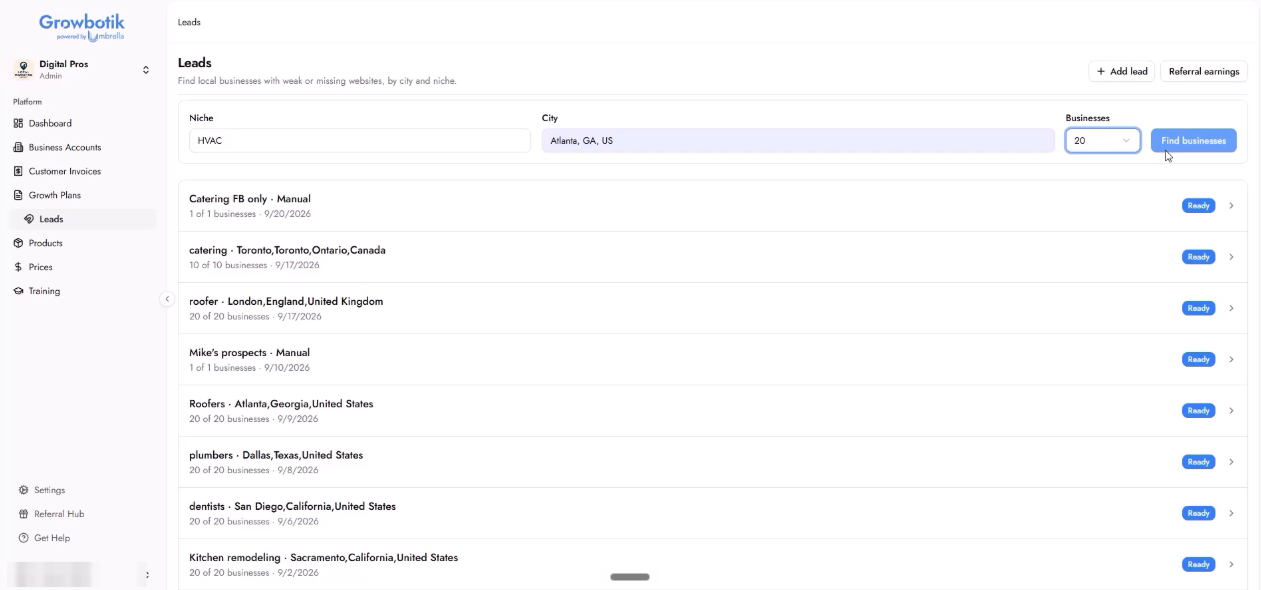
Growbotik searches Google Maps for businesses of that kind in that area, the same way you would search Google Maps yourself. The list is saved on the Leads page with the niche, city, number of businesses, and date, and shows Ready when it is done. Click the list to open it.
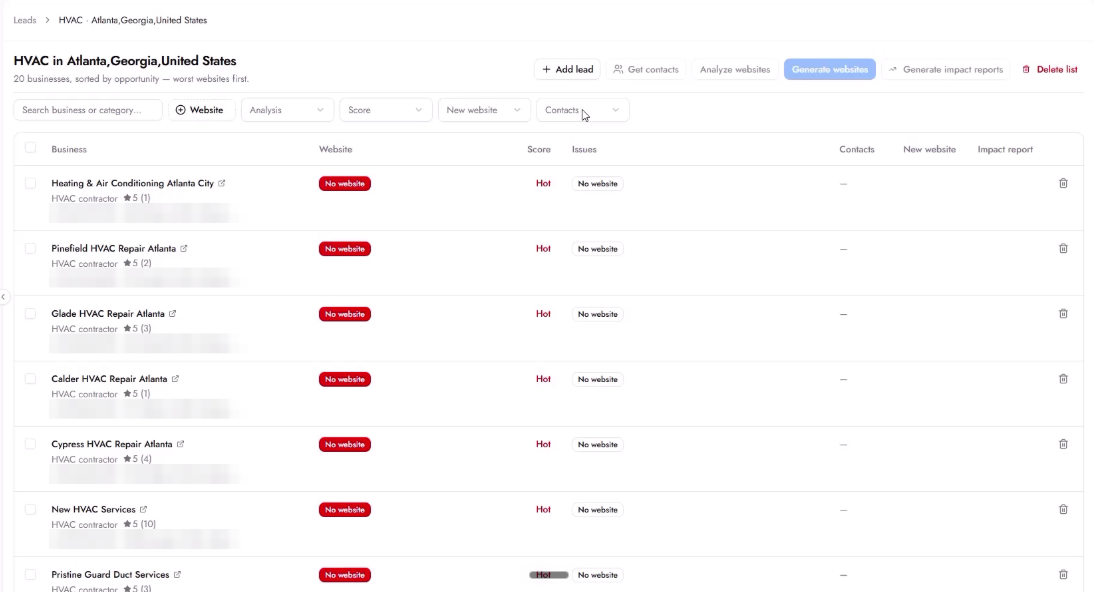
The list opens sorted by opportunity, with the weakest websites first. Businesses that do not seem to have a website are moved to the top. They show a red No website badge and a Hot score.
Growbotik decides that a business has no website by looking at its Google Business Profile. If the profile has no website link, the business is marked No website. Some businesses do have a website but never added it to their profile, so check a few before you reach out. Open the business's Google profile from the link next to its name and look for a website.
If a business shows a score of 100 before anyone analyzed it, ignore the number. It only means that Growbotik found a website. The real score appears after you run a website analysis.
Use this for businesses you already know, such as people in your own network.
Step 1: Go to the main Leads page. If you add a lead from inside a list, it is added to that list automatically.
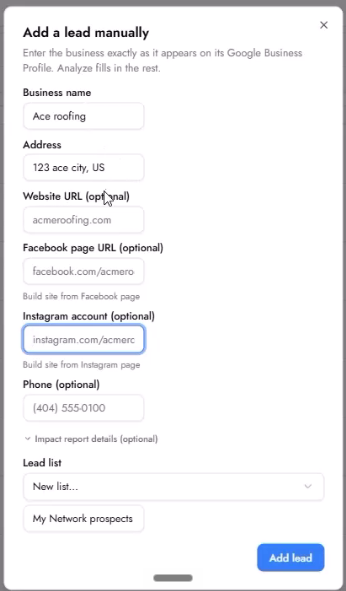
Step 2: Click Add lead.
Step 3: Enter the Business name and Address exactly as they appear on the business's Google Business Profile.
Step 4: If the business has a website, enter it in Website URL. Growbotik uses it to build the new website.
Step 5: If the business has no website, add its Facebook page URL or Instagram account, if it has pictures there.
Step 6: Add a Phone number if you have one. It is optional.
Step 7: Under Lead list, choose an existing list, or choose New list and give it a name, for example "My Network Prospects".
Step 8: Click Add lead.
Your new list appears on the Leads page with a Manual label. You can add as many manual leads and lists as you want.
Pictures make the biggest difference to the website Growbotik builds. They catch the owner's eye, and they show that the site was made for their business, not copied from a template. Growbotik takes pictures from these sources, in this order:
The business's own website, if it has one.
The business's Google Business Profile.
The Facebook page or Instagram account, if you added them.
The more information you add, the better the website.
When a Lead Is Ready for Symphony
If you use Symphony for automated outreach, a lead must meet two conditions before Symphony will pick it up:
The lead must have an analyzed website (a real score, not the default 100).
The lead must have at least one contact.
If only one condition is met — for example, a contact but no website analysis — Growbotik will not send that lead to Symphony. Both conditions must be met.
Delete businesses you do not plan to pursue by clicking the trash icon on their row. A clean list is easier to work with, and if you use Symphony, it gives Symphony a clean list to prospect from too.
Why does a business show No website when it has one?
Growbotik checks for a website link on the business's Google Business Profile. If the owner never added the link, Growbotik cannot see the website. Always check a few businesses on Google before you reach out about a new website. To add the website, use Add lead and enter it in Website URL. The pencil on the lead row adds Facebook and Instagram only.
Why do some businesses show a score of 100?
A 100 before analysis only means that a website was found. It is not a real score. Run Analyze websites to get the real score.
Can I add a business that does not appear in my search?
Yes. Click Add lead on the main Leads page and enter the business exactly as it appears on its Google Business Profile.
Can I upload a lead list from a CSV file?
No. Leads come from a search or from Add lead.