The Leads section is where you find local businesses worth pitching, build them a professional website before they pay a cent, prove the value with an Impact Report, and close the deal. When the owner buys Wix through your link, our fulfillment team puts the site live and you get paid. Everything happens inside one workspace per lead: the new website on the left, your working tools on the right.
Activating Leads
Before you can work leads, you need a Wix subscription of your own, purchased through the Growbotik link. This proves the referral flow works for your account and is the same thing your future clients will do.
Go to wb.growbotik.com and enter your email on the activation page.
You will be directed to Wix to purchase the Symphony package.
After purchasing, go to the Leads section in your Growbotik dashboard.
Enter the email you used to purchase the Wix package and click Send verification email.
Open the email and click the verification link.
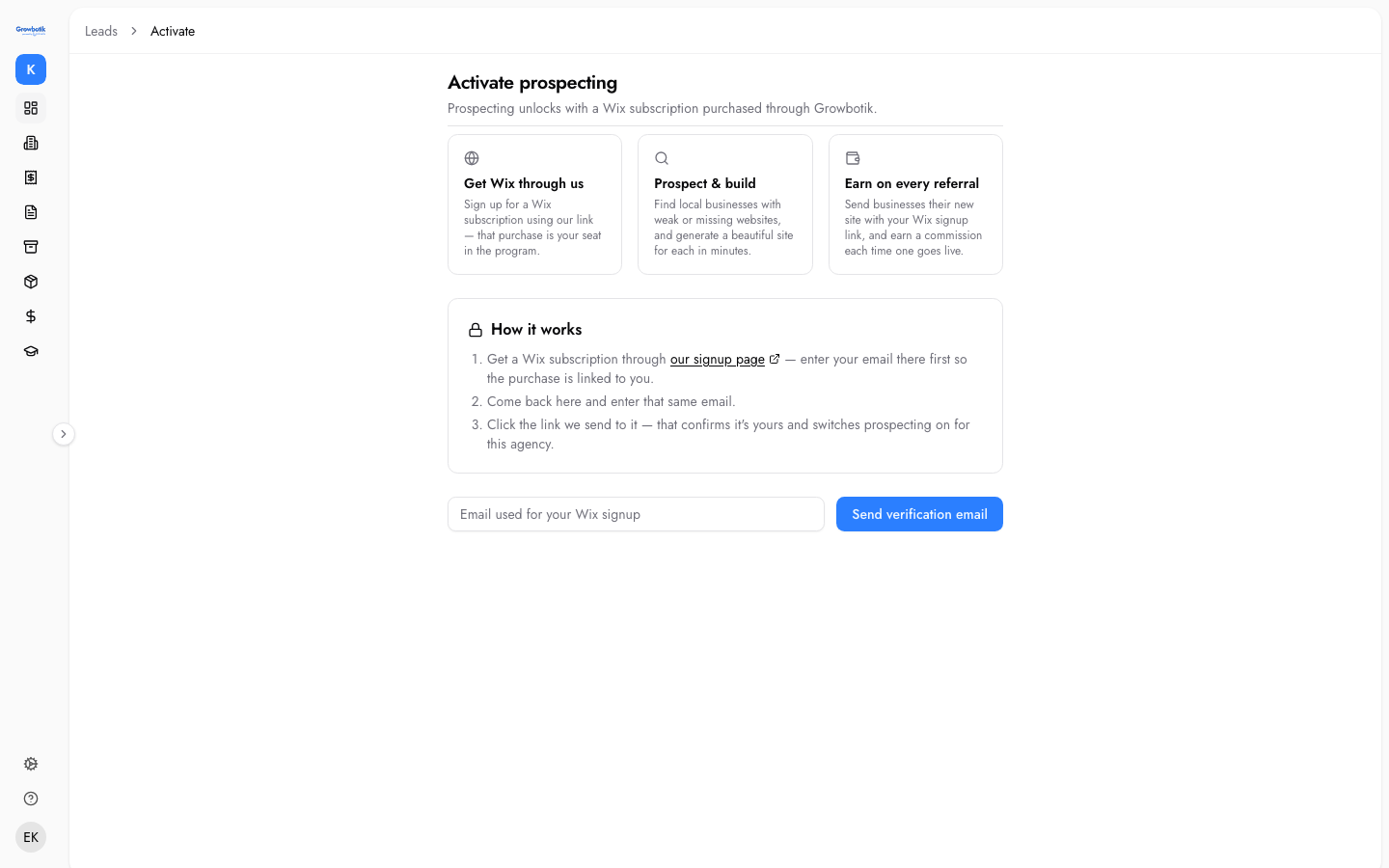
Once verified, the activation screen is replaced with the full Leads interface. Activation unlocks Leads for your whole agency, not just for you. The email you use for Wix does not need to match your Growbotik email, but the system uses it to match the purchase to your account. The verification link expires after 3 days. Request a new one if it expires. If the Wix purchase is refunded or reversed, access is switched off.
How Leads Connects to Symphony
The Leads section integrates with Symphony via MCP (a connector for AI agents). Symphony can automatically fetch leads from Growbotik, reach out to businesses on your behalf, follow up if they do not respond, send the website mockup when they express interest, handle objections, and continue the conversation all the way to booking a call or near-sale. Everything covered in this article can be done manually or automated through Symphony. Symphony gets its behavioral rules from policies stored inside Growbotik, so you do not need to configure detailed instructions for each agent.
Finding Businesses
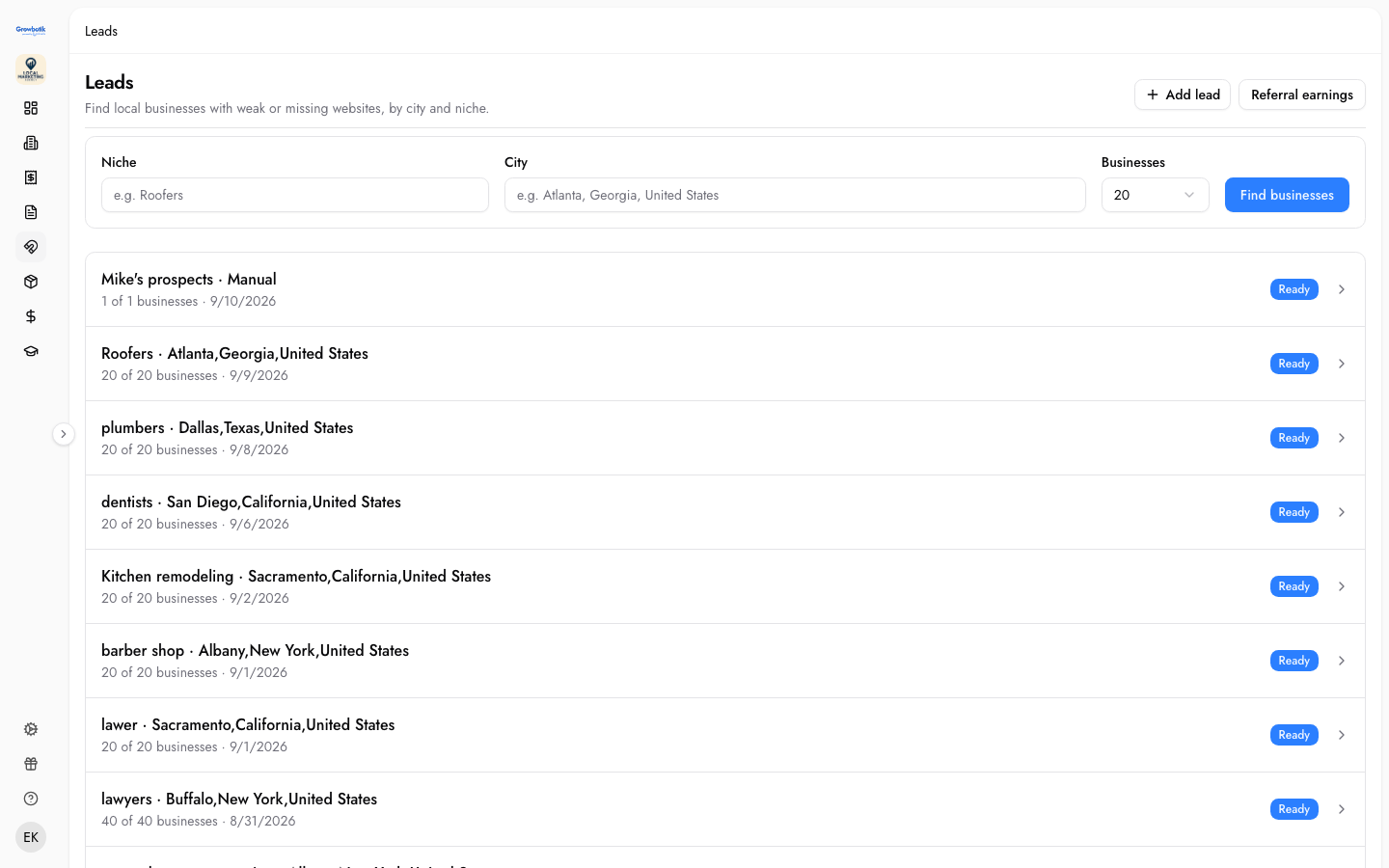
After activation, the Leads screen shows three fields at the top: Niche, City, and Businesses (the number of results to return). Type a niche (for example, "Roofers"), a city (for example, "Atlanta, Georgia, United States"), select how many businesses you want, and click Find businesses.
Results appear within about a minute. Each search is saved below the search bar, showing the niche, city, number of businesses found, the date, and a Ready badge when results are available. Click any saved search to open the full results. Running the same search again does not repeat businesses. It goes deeper and brings back new results that were not included in the previous search. The system automatically floats businesses without a website to the top of the results.
Reading the Results
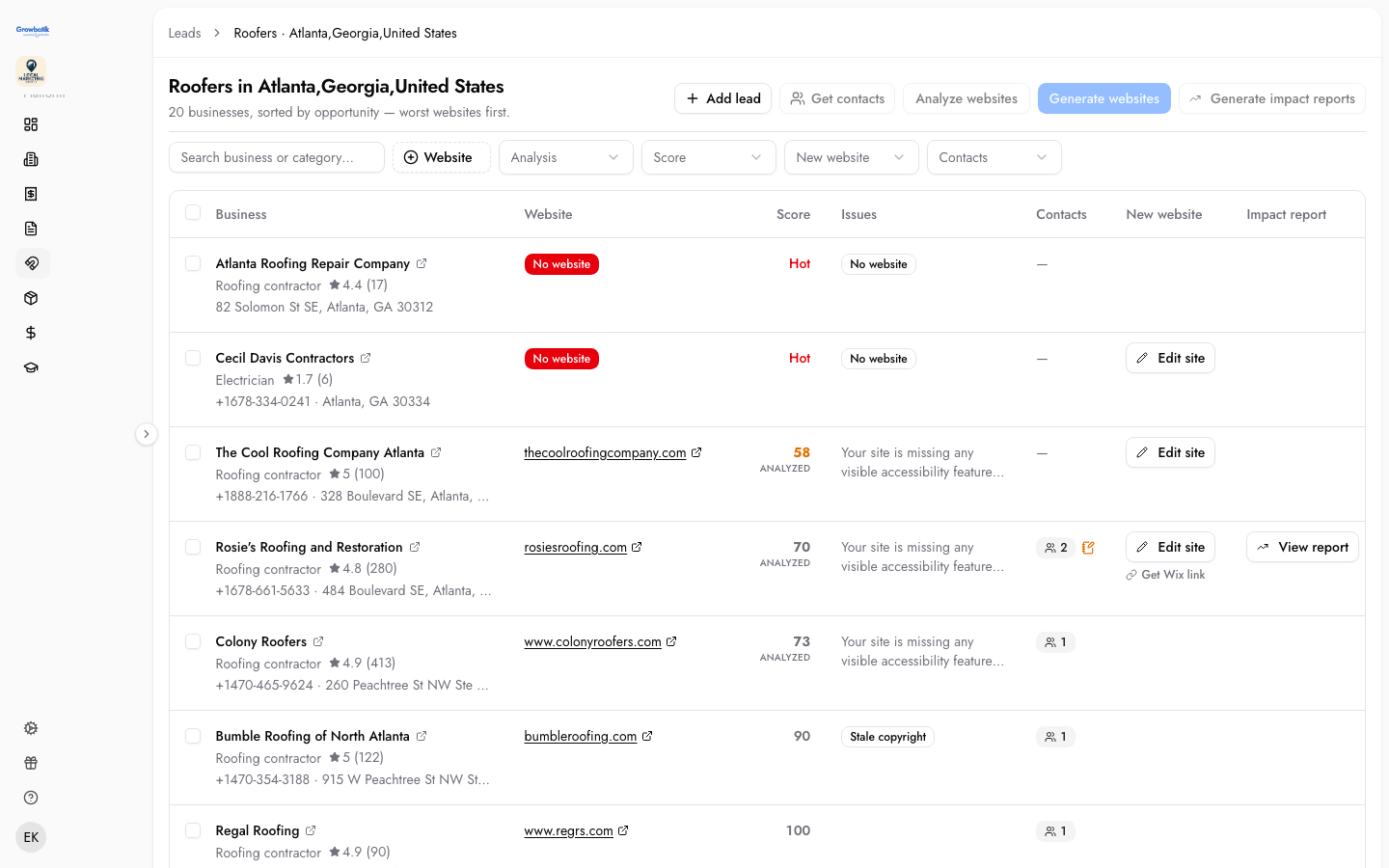
The results table sorts businesses by opportunity, with the weakest websites listed first. These are your best leads.
Business — the business name, category, Google rating, review count, phone number, and address.
Website — the current website URL. A red "No website" badge appears if they have none.
Score — a numeric score out of 100 labeled "ANALYZED" once analysis is complete. Businesses with no website show "Hot" instead.
Issues — a short description of what is wrong with their current website. Businesses with no website show "No website."
Contacts — the number of scraped contact details available.
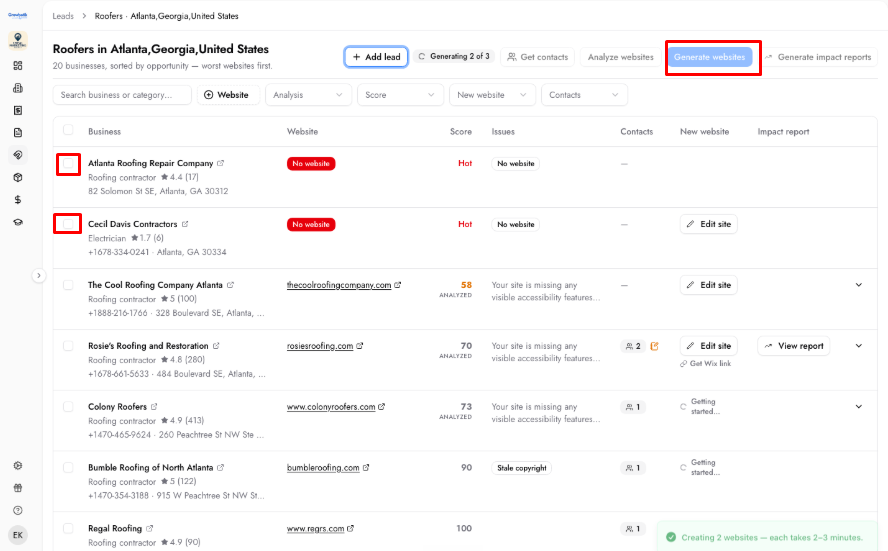
New website — shows "Edit site" when a website has been generated, or "Getting started..." while one is being built.
Impact report — shows "View report" when an Impact Report has been generated.
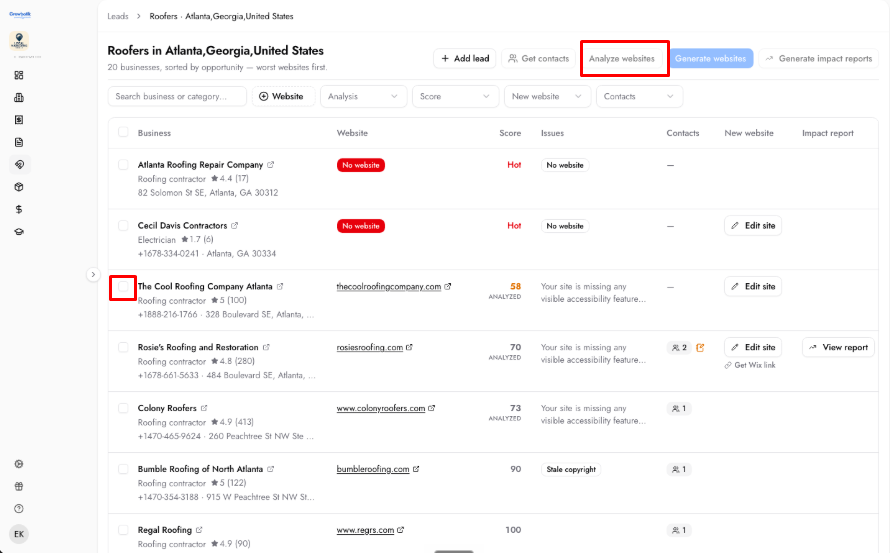
Use the toolbar at the top to work in bulk: tick the rows you want, then use Get contacts, Analyze websites, Generate websites, or Generate impact reports.
Analyzing Existing Websites
For businesses that already have a website, select them with checkboxes and click Analyze websites. The system retrieves information about each business and scores the website out of 100. The system processes 3 analyses at a time and works through the rest in turn.
Once analyzed, each business shows a score and a list of specific issues found, such as missing booking widgets, no chatbot, poor call-to-action placement, or missing accessibility features. These issue details are also available to Symphony for use in automated outreach messaging.
The recommended workflow is to analyze websites first before getting contacts or generating websites. There is no point in getting contacts or building a website for a business until you know it is worth pursuing.
If no contacts are found for a business, there is no way to reach them through the system. You can visit their website directly and look for a contact page or submission form, or try reaching them via Facebook or LinkedIn direct messages. In general, focus your effort on businesses where contacts are available.
Adding a Business Manually
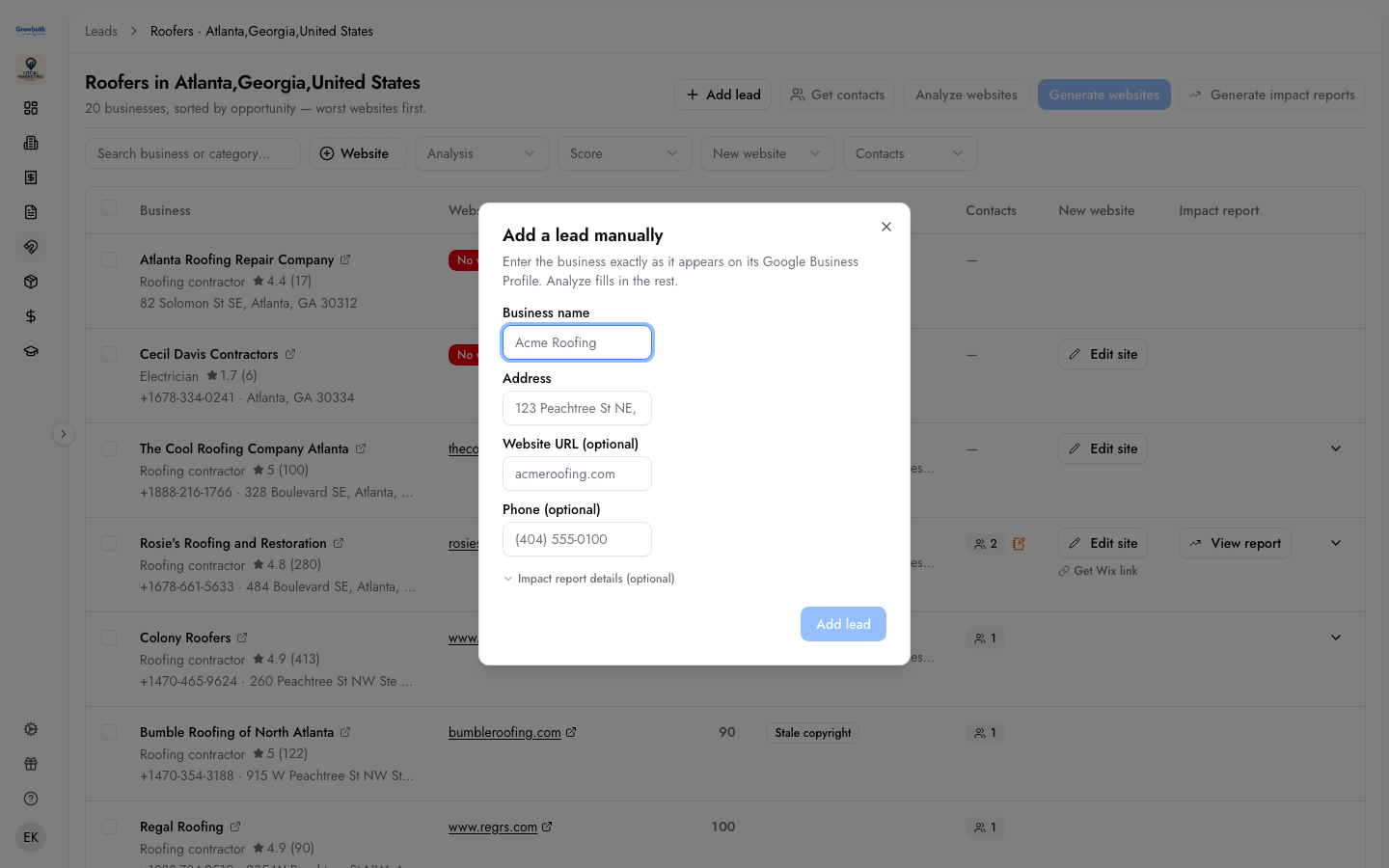
If you already know who you want to pitch, click Add lead. Enter the business name and address exactly as they appear on its Google Business Profile. Website and phone are optional. The business joins the table with a Manual badge and is scored right away.
If the business has no website and no Google Business Profile, you can enter a competitor's website URL instead. The system will build a templated version based on that competitor's site, which you can then customize.
To improve the quality of the generated website, add as many image sources as possible. If the business has a Facebook page or Instagram account with images, click the pencil icon on the lead row to edit the business details and add the Facebook or Instagram URL. The system uses images in the following priority order: if the business has a website, it pulls information and images from the website. If there is no website, it defaults to Google Business Profile images. If GBP lacks images, it uses Facebook or Instagram if those URLs have been added. More images produce a more personalized and impressive result.
Manual leads can be organized into their own lists. When adding a lead from the main Leads page, you can create a new list and name it (for example, "My Network Prospects"). If you add a lead from inside an existing list, it is added to that list automatically.
Generating Websites
Select up to 3 businesses using the checkboxes, then click Generate websites. Each website takes 2 to 3 minutes. The system processes 3 at a time and works through the rest in turn. You do not need to wait on the page.
Each website is built from the business's own information. If the business has an existing website, the system pulls content and images from it. If there is no website, it uses Google Business Profile images. If GBP lacks images, it uses Facebook or Instagram if those URLs were added to the lead. The AI selects a color theme based on the business's industry.
The system automatically includes a conversion widget on every generated website, such as a free estimate form or quote request flow. This is designed to engage visitors and capture their contact information.
Important: Do not generate websites before the business confirms they want one. Reach out first using the insights from the analysis. Only generate the website after the business responds and says they are interested. Generating websites for unresponsive or uncontacted businesses wastes resources and slows down your workflow.
The Lead Workspace
Every lead has its own workspace. It is split into two.
Left side — what you deliver. The new Website and the Impact report. Switch between them at the top. Above the site, you can toggle between desktop and mobile preview, open it in a new tab, download it, regenerate it in a different design direction, and pick a version (v1, v2, and so on). Earlier versions are always kept.
The generated website is a fully designed mockup. Navigation, call buttons, and links work visually, but backend functionality such as the chatbot is not connected to anything until the business purchases and the Growbotik team puts the site live. Do not present the mockup as a fully functional website. Present it as a finished design ready to go live.
Right side — how you work it. Five tabs: Edit chat, Outreach, Analysis, and Activity.
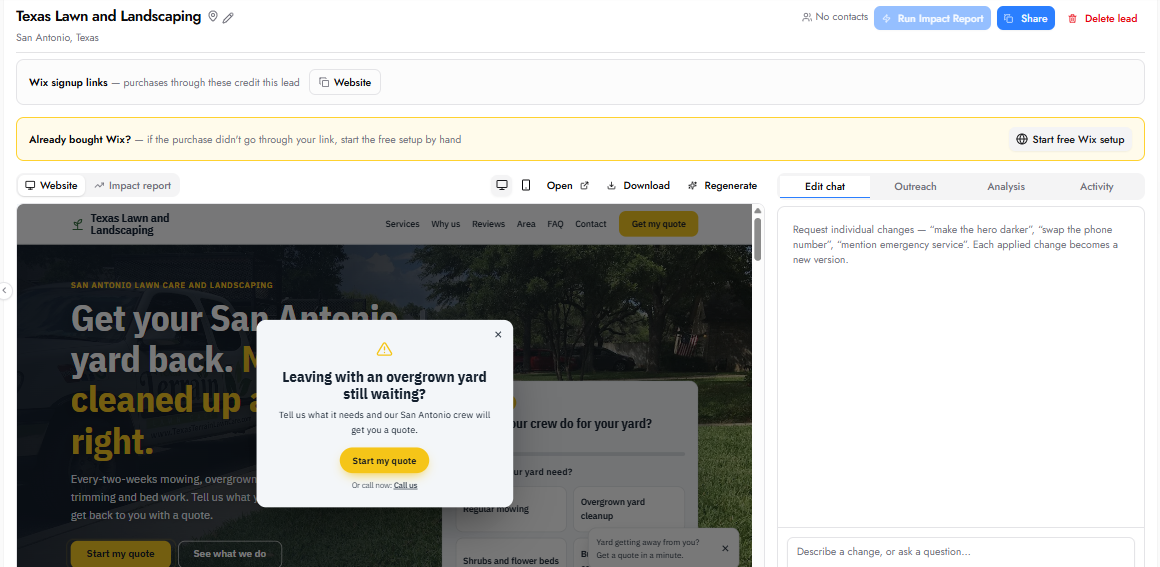
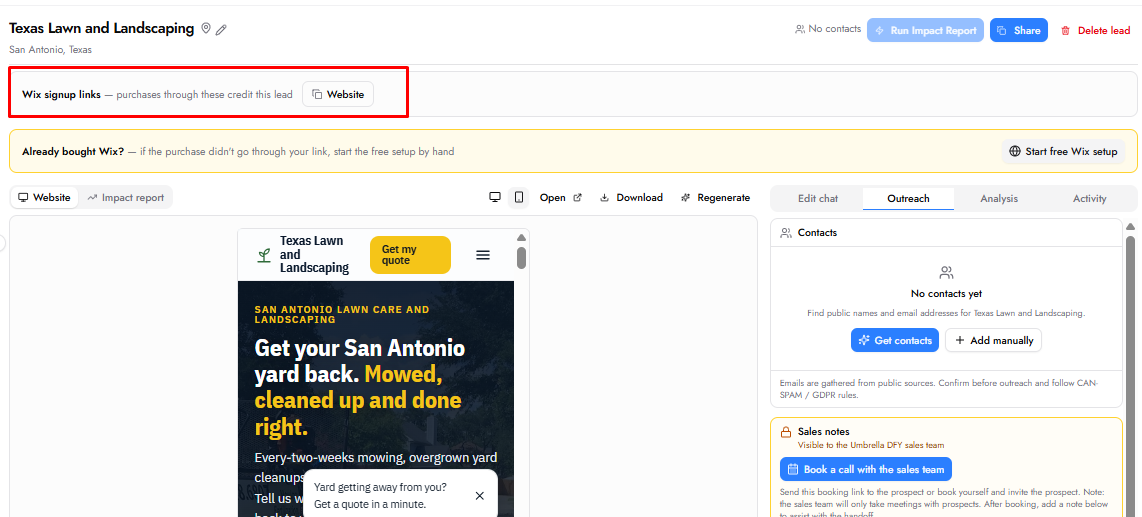
Header. Shows the Site score, contacts count, Run Impact Report, and Share. Under the business name, the map pin opens the Google profile and the globe opens the current website. Below the header, the Wix signup links bar shows Website Builder, Domain, and Symphony. Purchases through these links are credited to this lead and to you.
Editing the Website
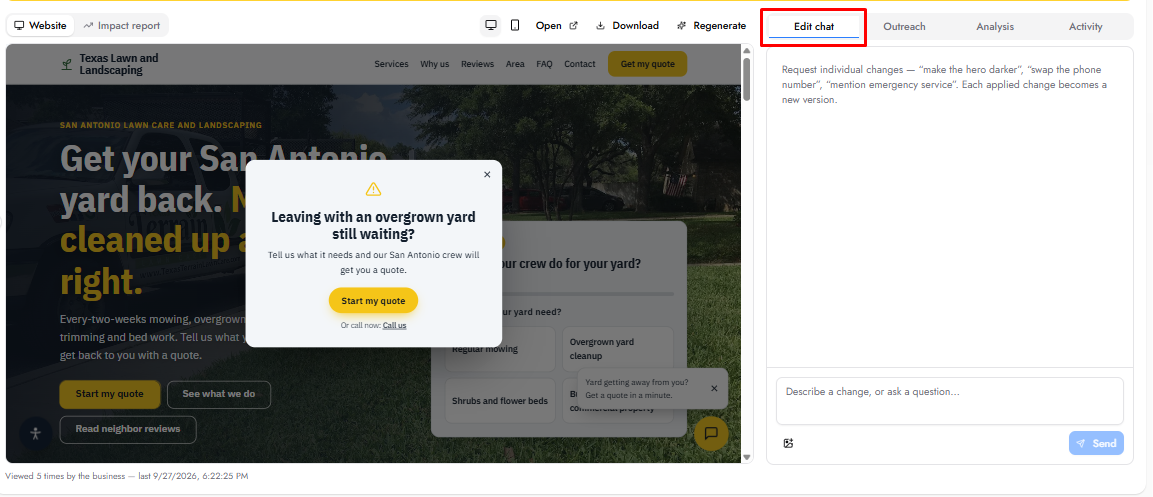
The Edit chat tab is where you customize the site. This is a mockup editor built for light changes in text and layout, not a full website editor. Type what you want in plain language (for example, "remove the call now button," "move the estimate widget to the top of the page," or "change the color theme from orange to blue") and click Send. Each change creates a new version (v1, v2, etc.). Click any version pill to compare. If a change fails, a retry option appears.
Attach images using the picture icon and describe where they should go. The share link always shows the latest version, so if you fix something after sharing, the business sees the fix automatically. Ask a question in the chat instead of requesting a change and you get an answer without creating a new version.
If you are not happy with the overall design, click Regenerate to get a completely different layout and design direction. Earlier versions are always kept. Do not spend excessive time tinkering with the mockup. It is a conversation starter, not a production website. The business will almost always come back with their own change requests regardless of how polished the mockup is.
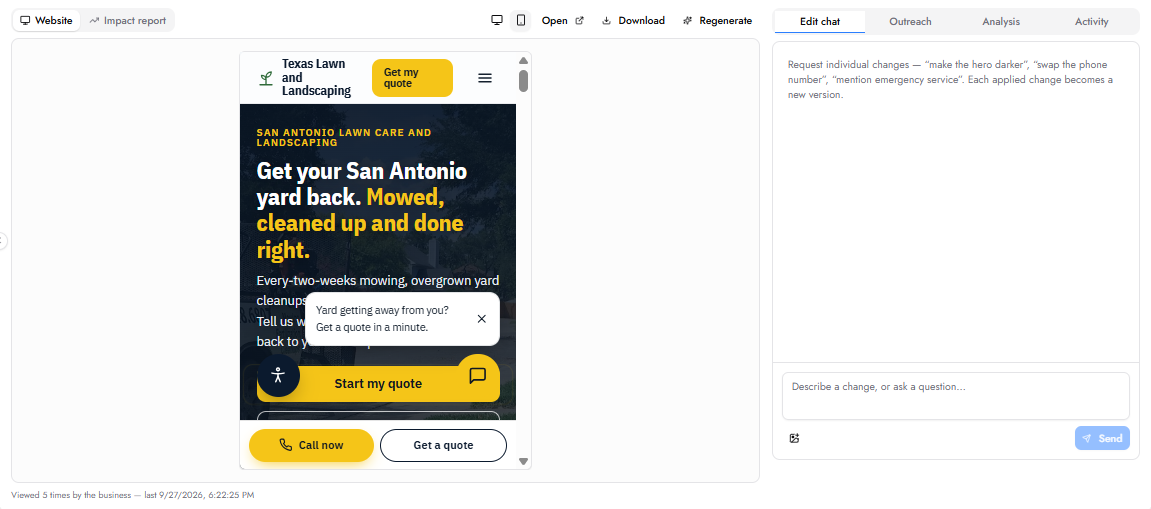
Checking Mobile
Most owners will open your link on their phone. Click the phone icon above the preview to see the site at mobile width. Check the top of the page, the call button, and the contact form. Click the monitor icon to go back to desktop. Sites are built phone-first: a call button that stays on screen, a short form, and a tap-to-call number in the header.
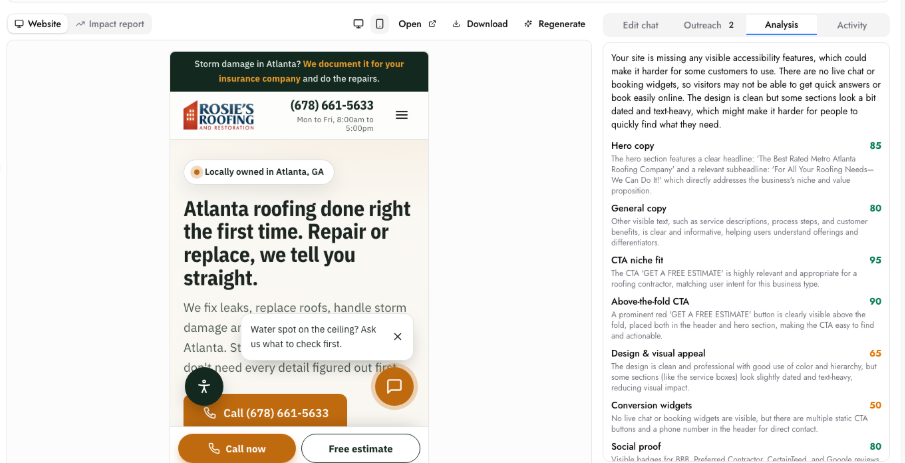
Analysis Tab
The Analysis tab grades the business's current website point by point. Each item (hero copy, general copy, CTA niche fit, above-the-fold CTA, design and visual appeal, conversion widgets, social proof) gets a score and a one-line reason. The overall score is the Site score in the header. Read the summary at the top before you call. It is the same text the owner sees on the share page, so you are both looking at the same facts.
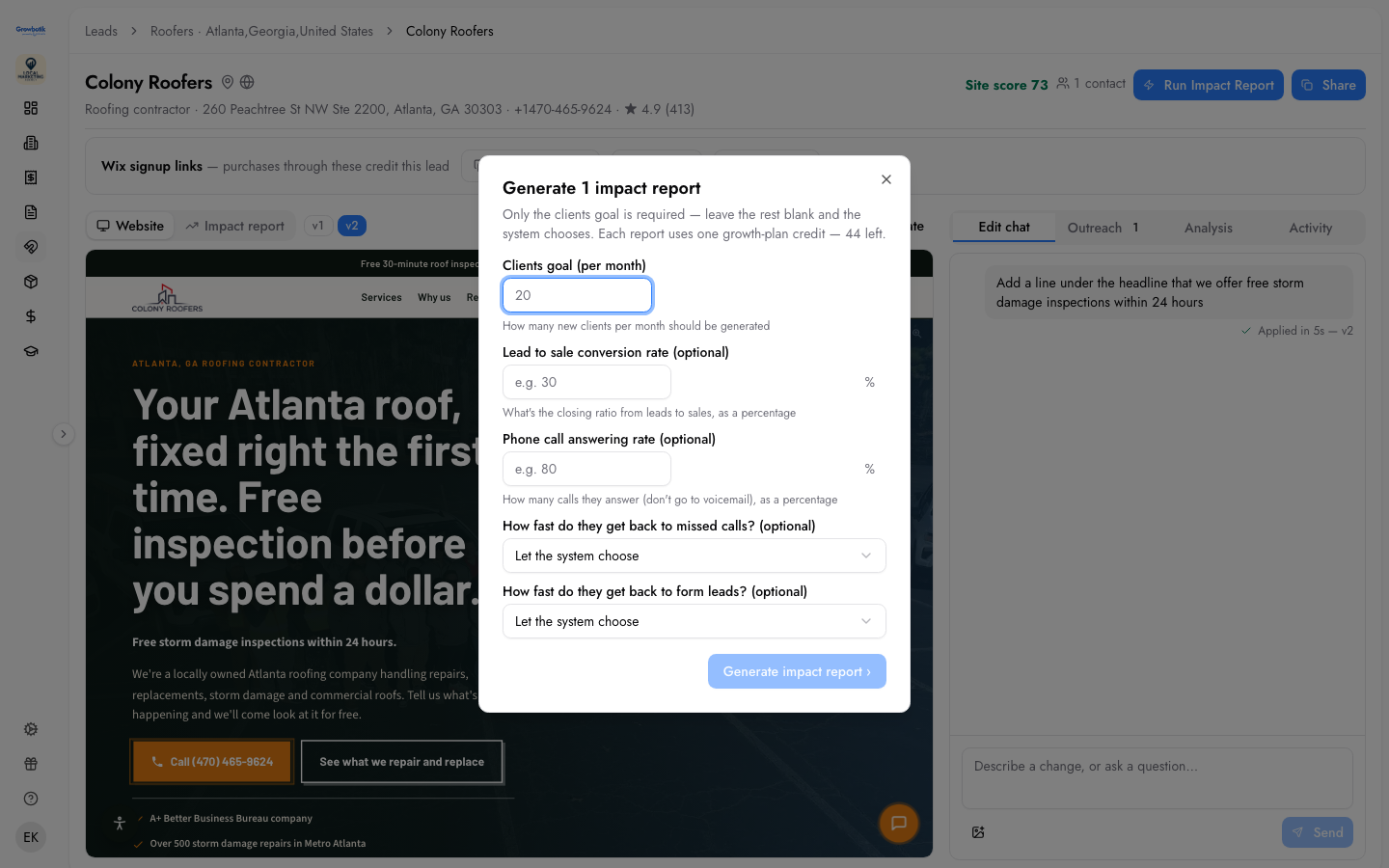
Running the Impact Report
Click Run Impact Report in the header, or select multiple businesses from the leads table and click Generate impact reports. A form opens with the following fields:
Clients goal (per month) — how many new clients per month should be generated. Required.
Average ticket value — the average revenue per job or transaction. If you know the niche, enter it. If not, leave it blank and the system uses industry averages. System-generated values are marked with a "System generated" label.
Lead to sale conversion rate (optional) — the closing ratio from leads to sales, as a percentage.
Phone call answering rate (optional) — how many calls the business answers out of 100, as a percentage.
How fast do they get back to missed calls? (optional) — select from dropdown or let the system choose.
How fast do they get back to form leads? (optional) — select from dropdown or let the system choose.
Click Generate impact report. Each report uses one growth-plan credit. The report takes approximately 10 minutes to generate. You can continue working on other tasks while it builds. You receive an email when it is ready.
Once generated, switch to Impact report at the top of the workspace. You can edit the business data at any time to recalculate the projections. If you give edit rights to the business, they can adjust their own numbers as well. Changing the clients goal recalculates the entire report including lead costs, revenue projections, and plan composition.
Outreach Tab
The Outreach tab finds names and emails at the business from public sources. Click Get contacts from the toolbar or from inside the workspace. Each contact shows their name, role, email, and a confidence label (Likely or Pattern guess). You can copy all contacts or add one manually.
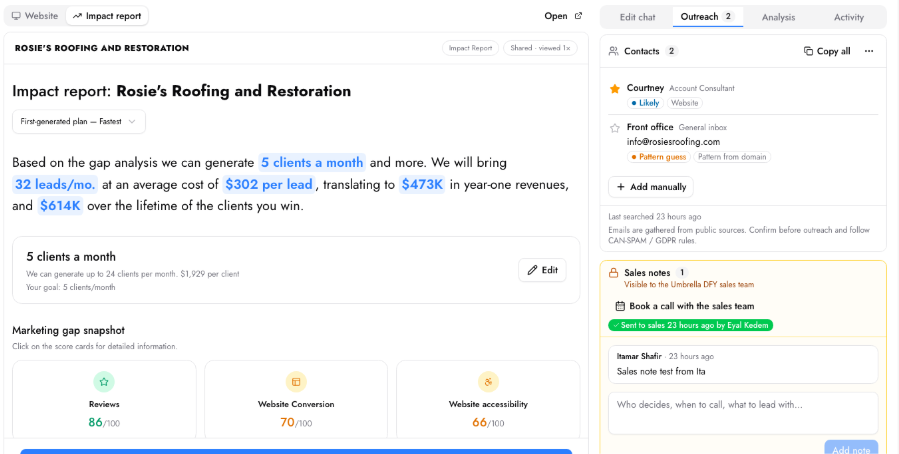
If no contacts are found for a business, there is no way to reach them through the system. You can visit their website directly and look for a contact page or submission form, but in general, focus your effort on businesses where contacts are available.
Send to Sales
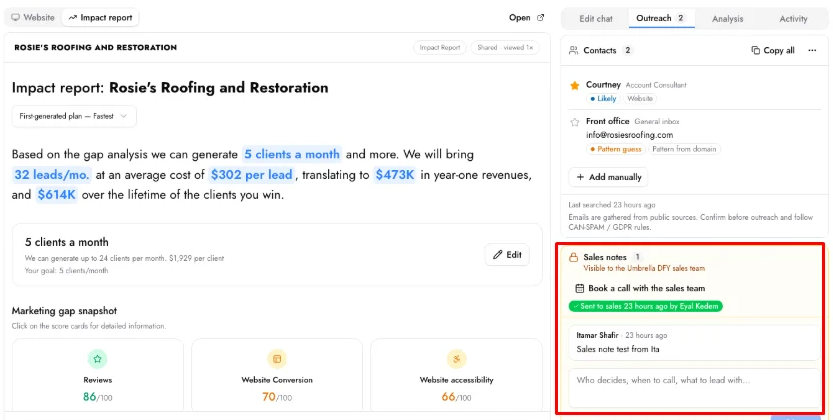
If you would rather not handle the sales call yourself, you can hand the lead to the Growbotik sales team. The sales team is a high-ticket closing team focused on selling full website rebuilds ($4,000 and up) and growth plans (tens of thousands per year). Do not send leads that only want the basic Wix hosting.
Only send a lead to sales after you have confirmed the business is interested and you have booked a meeting with them. Do not send cold or unresponsive leads.
In the Outreach tab, click Book a call with the sales team to open the sales team's calendar. Copy the calendar link and include it in your email to the lead. Then write what you know about the lead in the Sales notes field, including what they are interested in, any preferences or objections they mentioned, and the date and time of the booked meeting. Click Send to sales.
The more context you provide in the notes, the better prepared the sales team will be. You can also paste or summarize the last correspondence so the handoff picks up where you left off. If you want to join the call, state that in the notes. If you want to lead the call with the sales team as support, specify that as well. The default behavior if you say nothing is that the sales team takes full ownership of the conversation.
The Wix Signup Links
Each lead has a Wix signup link of its own, labeled Website. A purchase made through it is credited to this lead and to you. Always use the lead's own link. Never use a generic Wix link or a link from a different lead. A purchase through the wrong link cannot be matched to you and cannot be paid out. The "I want this website" button on the share page uses the correct link automatically.
Sharing with the Business
Click Share in the header. Copy the Website link, the Impact report link, or Copy both links, which gives you a two-line message ready to paste. Send it by email, text, or show it in person. Every time the owner opens a link, the view is counted. The share panel shows whether each link has been shared and how many times it was opened.
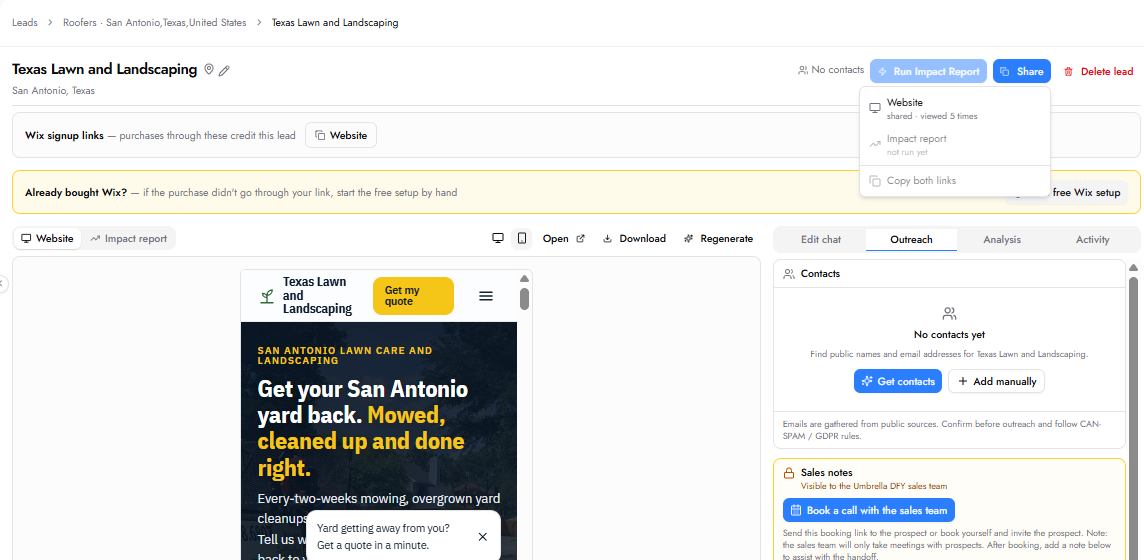
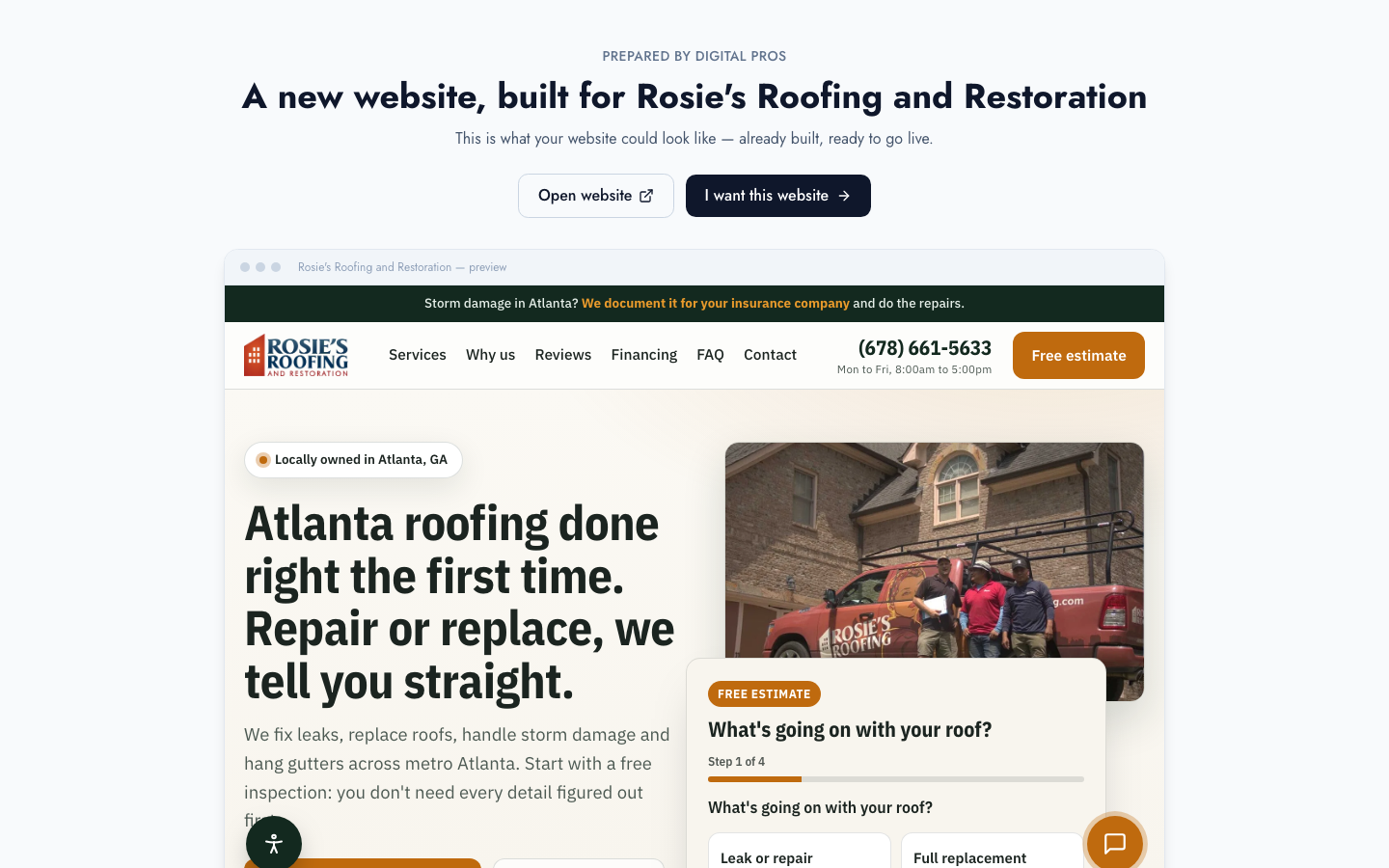
What the owner sees. The website link opens a clean page under your agency name. It shows a short read on their current website next to the new one so the before and after is obvious. They can open the site full screen. The "I want this website" button takes them to Wix through your link. The report link opens the Impact Report the same way, with a Contact button that reaches you. Review detailed growth plan leads them to the full plan.
Activity Tab
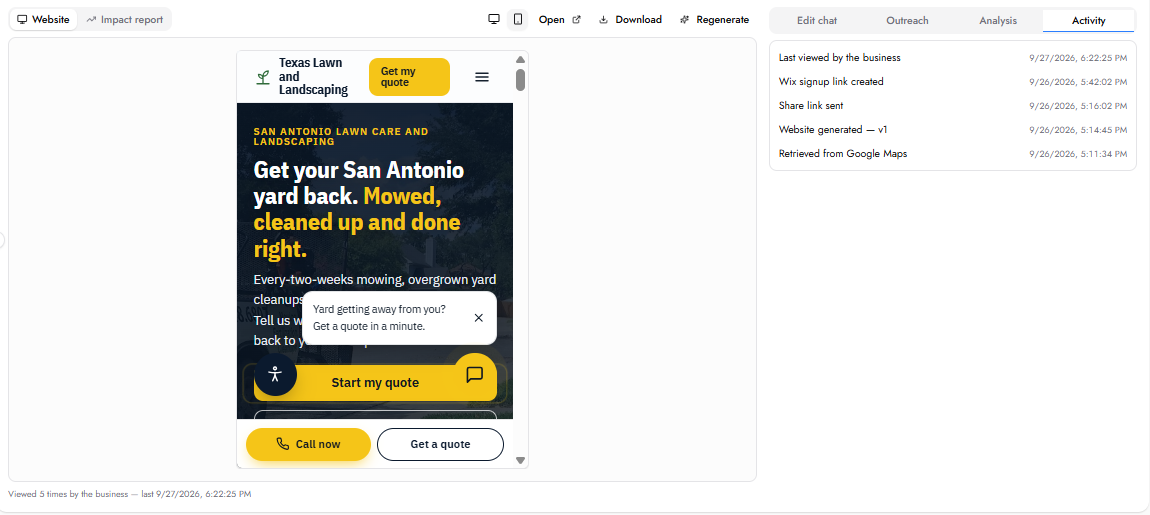
The Activity tab is a timestamped log of everything that happened with this lead, in order: retrieved from Google Maps, website analyzed, website generated, edited, share link sent, viewed by the owner, report run, contacts found, sales notes added, sent to sales, converted. Watch for views. An owner who opened your link yesterday is a reason to call today.
When a Lead Converts
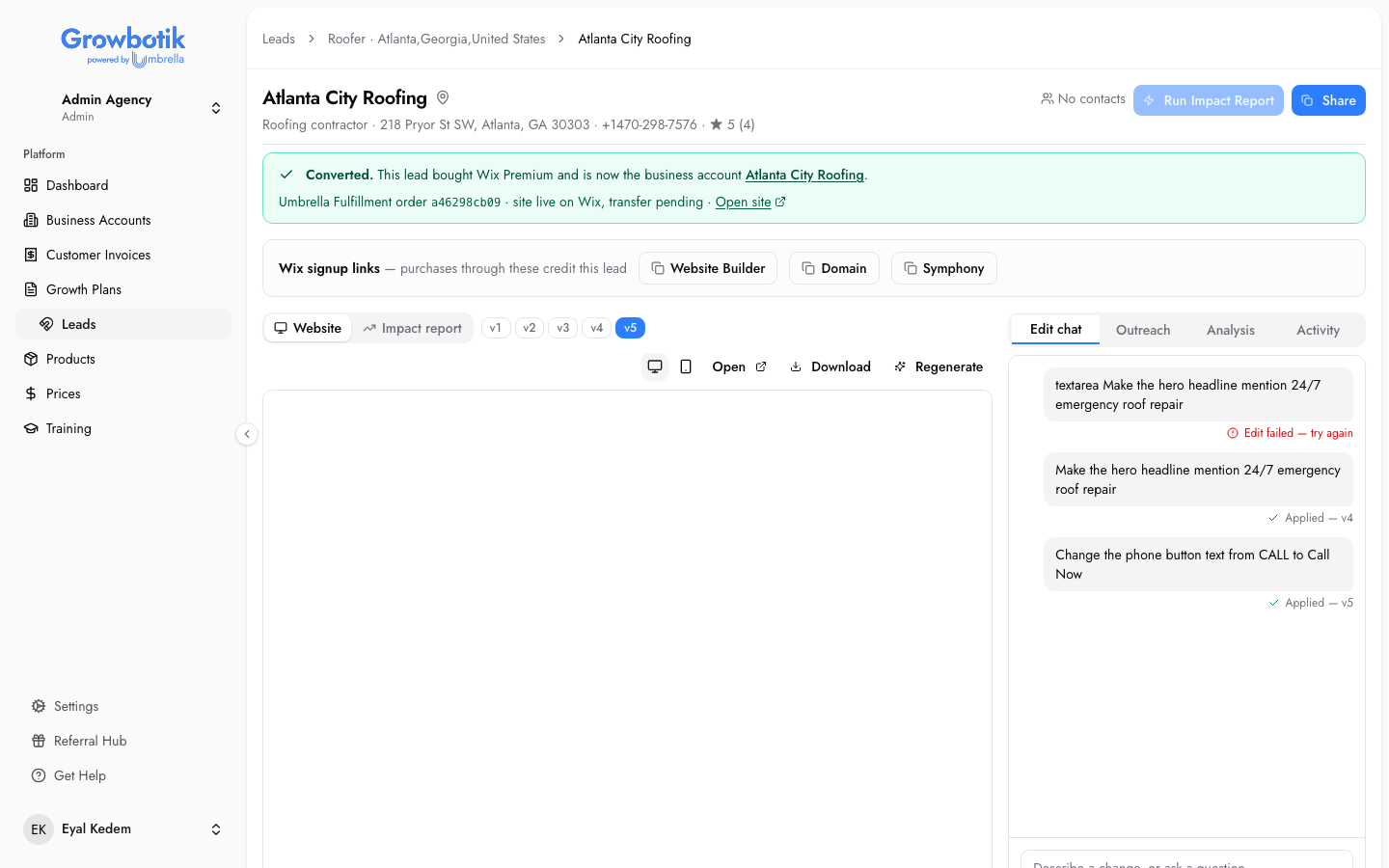
When the owner buys Wix Premium through the lead's link, three things happen automatically. The lead is marked Converted with a green banner. A Business Account is created for the business inside your agency. A fulfillment order is opened for the Growbotik team to publish the site to Wix. The workspace banner shows all of this, and later the live site address.
Keep polishing the site in the Edit chat until it is deployed. The latest version is what goes live. A purchase can take a little while to show up. A check runs every night to catch anything Wix did not report right away. If Wix reverses the purchase, the referral and the commission are reversed too.
What Happens After Conversion
Our fulfillment team publishes the site to Wix, transfers it to the owner's Wix account, and connects the domain. Wix emails the owner a transfer request. They accept it from the Wix account they purchased with. After that, they own the live site and its subscription. Questions about the build go to the fulfillment team through the order's messaging, not through support.
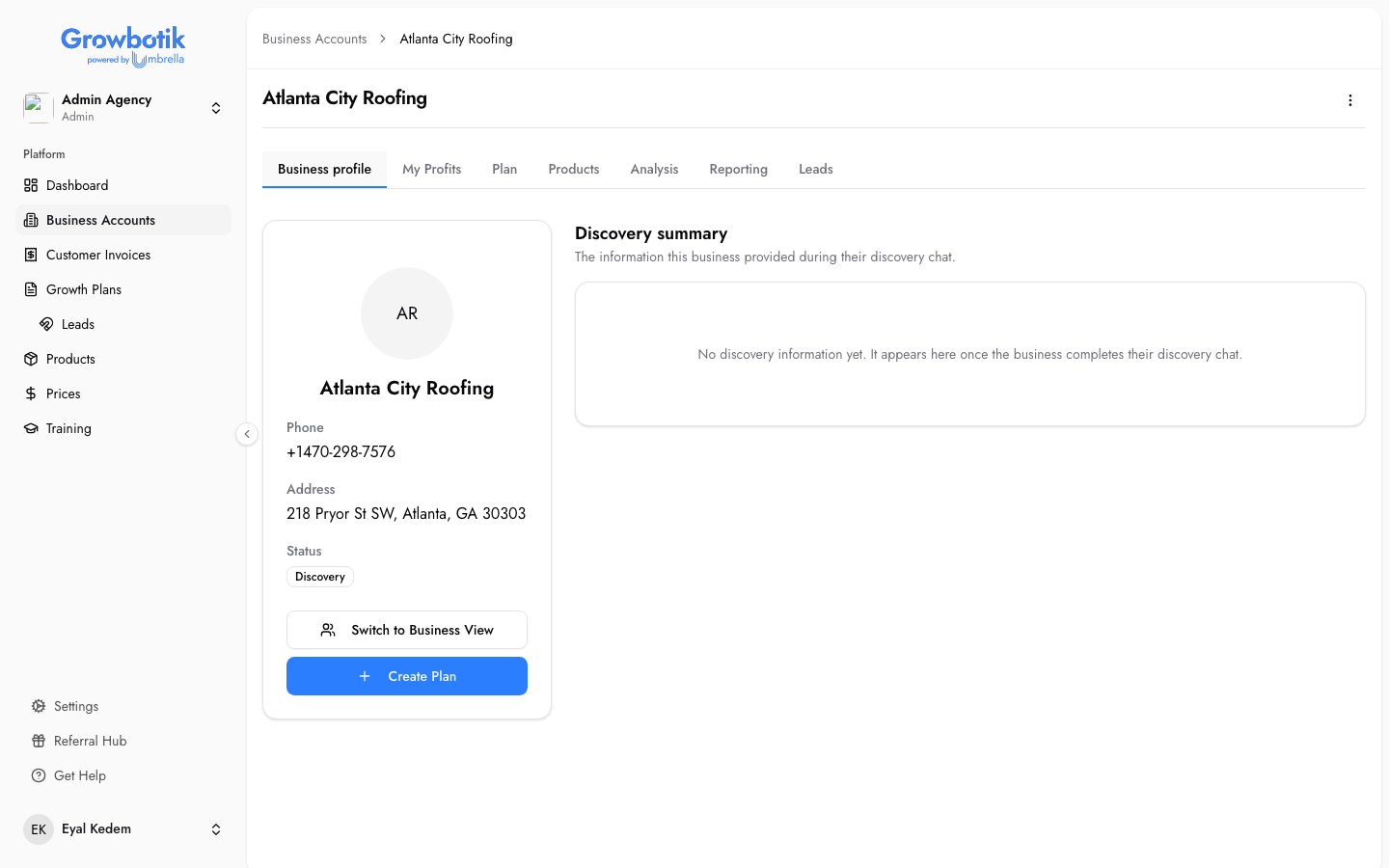
The converted lead now appears under Business Accounts like any other client. From here you can offer plans, products, and reporting exactly as you do for every other client. The Impact Report you already built is the entry point for selling a growth plan.
Three Paths After a Positive Response
When a business responds positively to your website mockup, there are three ways to move forward:
Wix hosting only — the business just wants the website as-is. Send them the Wix signup link from the lead's workspace. They purchase Wix hosting, and the Growbotik team puts the site live. You can always follow up with upsell opportunities later.
Full website through Growbotik — the business wants changes, additional pages, or a full revamp. This is handled through the Website Creation or Website Revamp products in the Products section. There is a wholesale cost that you mark up. The Growbotik team handles fulfillment.
Build it yourself — you build the website using external tools of your choice and charge the business directly. This option gives you full control over pricing and delivery.
For options two and three, book the lead with the sales team or handle the conversation yourself.
Referral Earnings
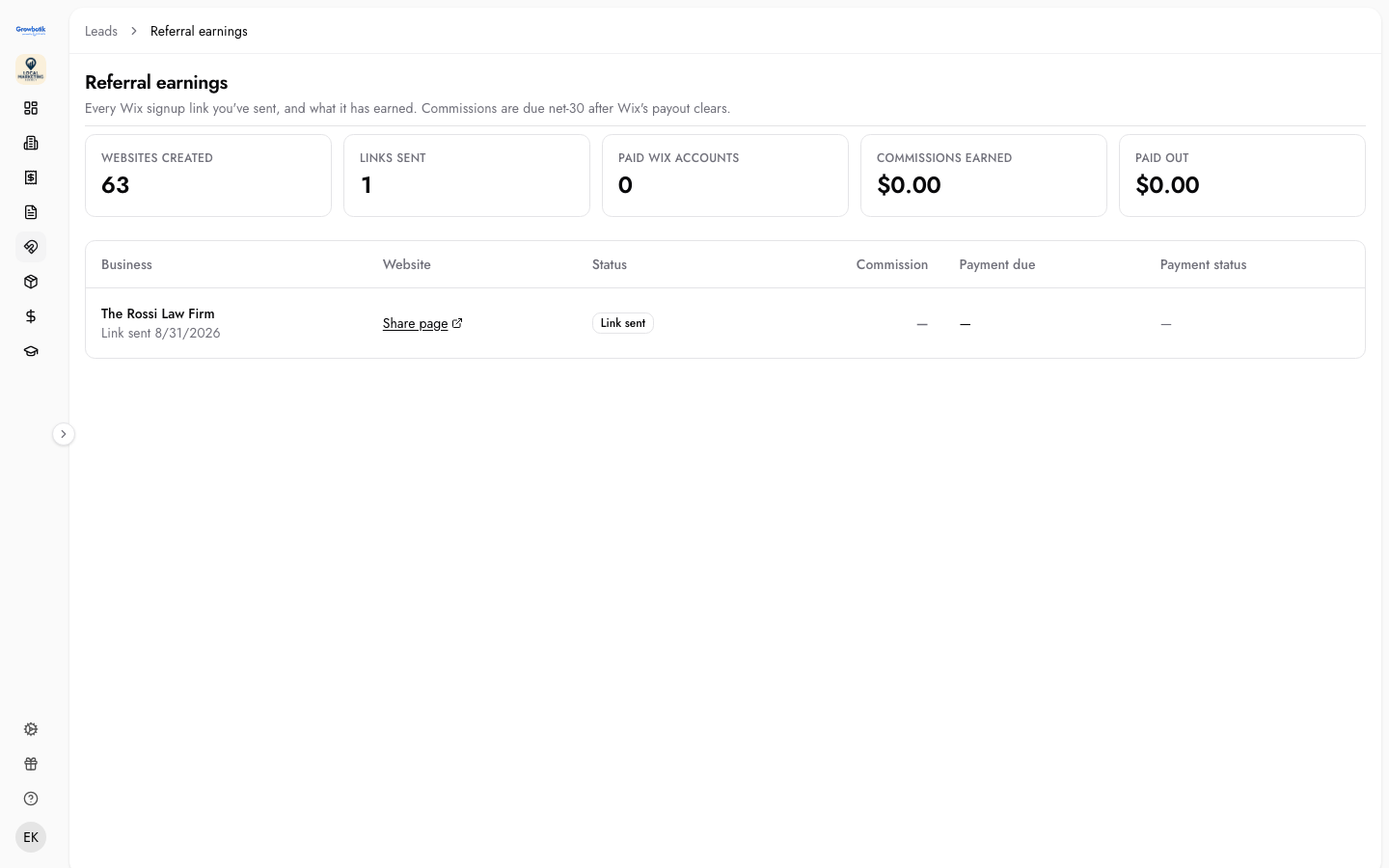
Click Referral earnings in the top right of the Leads screen. This page lists every website you built and sent, whether or not it sold yet. Five summary cards show: Websites Created, Links Sent, Paid Wix Accounts, Commissions Earned, and Paid Out.
The table below shows each business, the share page link, status, commission amount, payment due date, and payment status. The website sales earn you a bounty, paid by Growbotik (not by Wix directly), provided the business keeps their Wix subscription active for at least 30 days.
The statuses are:
Link sent — the owner has the link but has not purchased.
Purchased — they bought Wix.
Pending reconciliation — Wix has confirmed the sale but has not paid Growbotik yet.
Payable — Wix has paid Growbotik.
Paid — Growbotik has paid you.
The bounty becomes payable once Wix's affiliate program has paid Growbotik for the sale. Growbotik then pays you within 30 days of that. A reversed or refunded Wix sale is clawed back. Get Wix link on a row creates the lead's tracking link if it does not exist yet.
Frequently Asked Questions
Can I use a different email for Wix than my Growbotik email?
Yes. You can use any email. It does not need to match your Growbotik email. You just need access to it to complete verification.
How many websites can I generate at once?
Up to 3 at the same time. The system processes the rest in turn. There is a daily limit of 50 per agency.
Can I add a business that does not appear in search results?
Yes. Click Add lead and enter the business details. It joins the table with a Manual badge and gets the same analysis and tools as any other lead.
Does the Impact Report use credits?
Yes. Each Impact Report uses one growth-plan credit from your account allowance.
What happens after a lead converts?
The lead is marked Converted, a Business Account is created automatically, a fulfillment order is opened, and the commission is tracked in Referral earnings.
What does "Send to sales" do?
It hands the lead to the Growbotik sales team. They handle the pitch and follow-up from there. Use this if you would rather not sell the website yourself.
Can I export my leads?
No. There is no export function currently. All leads and websites are managed inside the Leads dashboard.
Which Wix subscription plan is required to activate Leads?
The Wix subscription costs approximately $20 per month.