Overview
The Agency Console is your control panel for adjusting a client's Growth Plan — whether you are changing prices, adjusting projected leads, or fine-tuning details as client goals shift. This guide covers each section and when to use it.
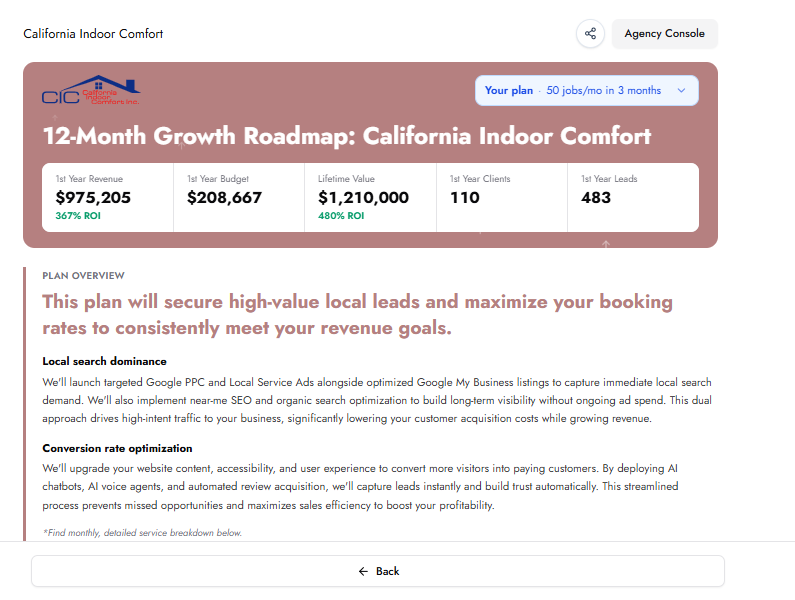
From the Plan stage of any Growth Plan, click the Agency Console button in the top right. A panel opens on the right side of the screen with all available controls.
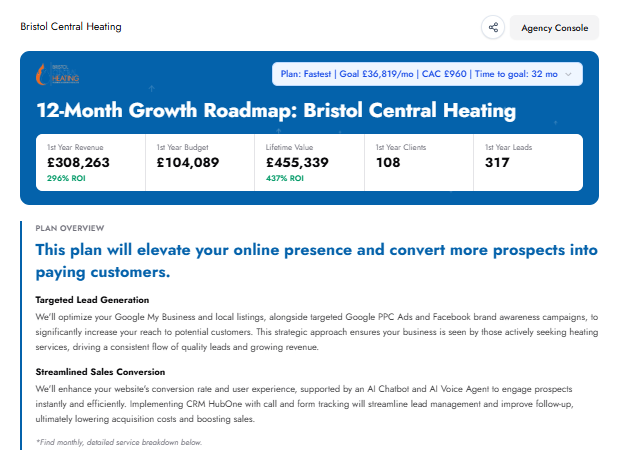
A new panel will open on the right side of the screen with options for adjusting the growth plan. We will cover each of those options below.
Adjust the monthly revenue target at the top of the panel. Update this whenever your client's goals change — whether they are aiming higher or taking a more conservative approach.
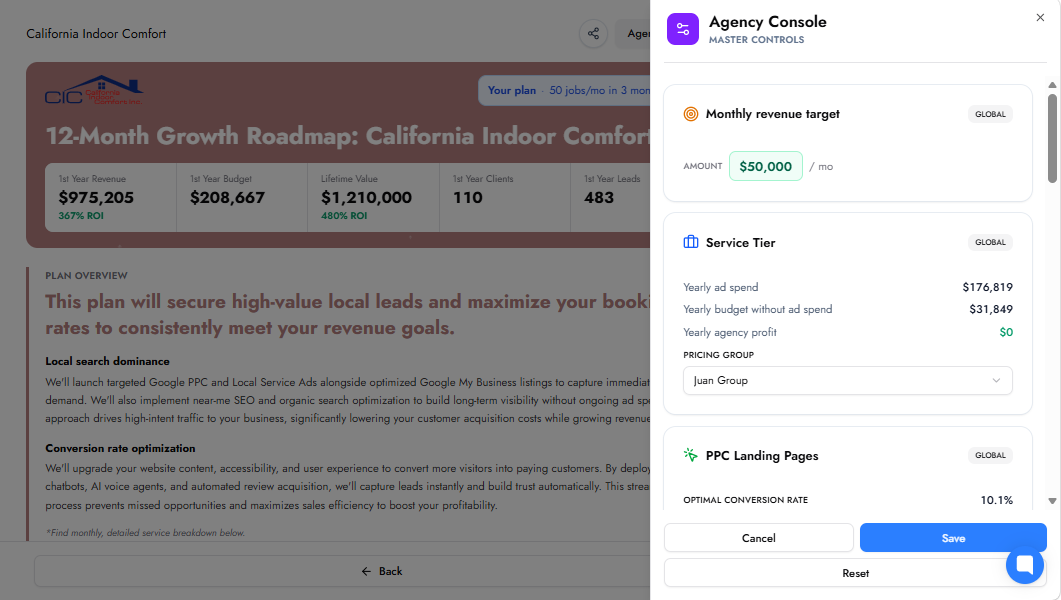
Under Service Tier, switch the pricing group to update service prices across the plan. This is useful for offering discounts, upgrading clients, or shifting to premium tiers. Select a different group and all service prices in the plan update automatically.
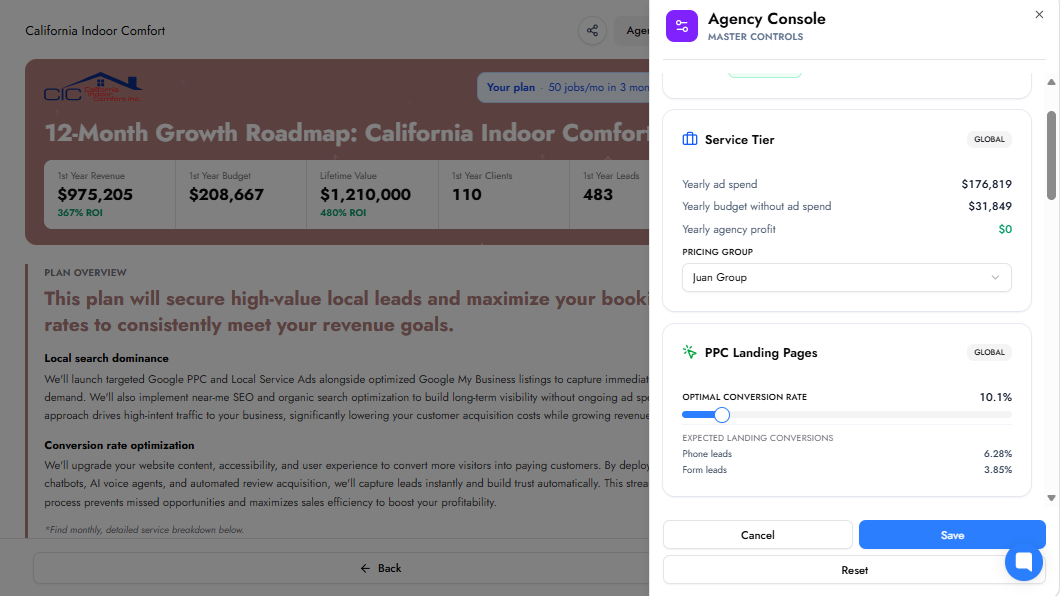
If you know a PPC landing page converts better or worse than the default rate, drag the slider to the correct value. Only adjust this if you are confident in the new rate based on actual campaign results.
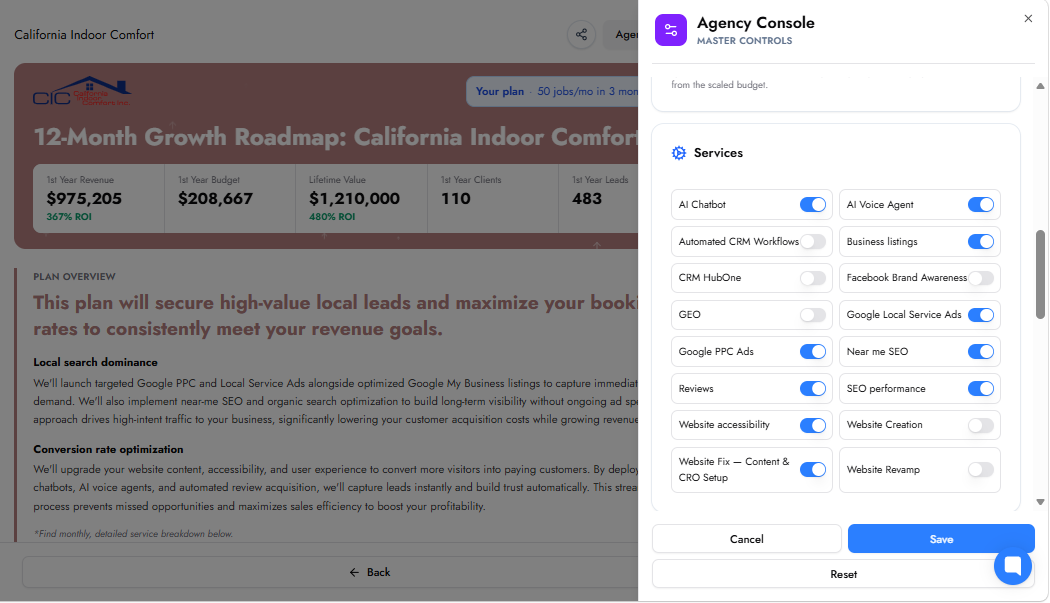
Toggle individual services on or off to match the client's needs. Add new services or remove any the client no longer wants — this keeps the plan accurate and aligned with their current situation.
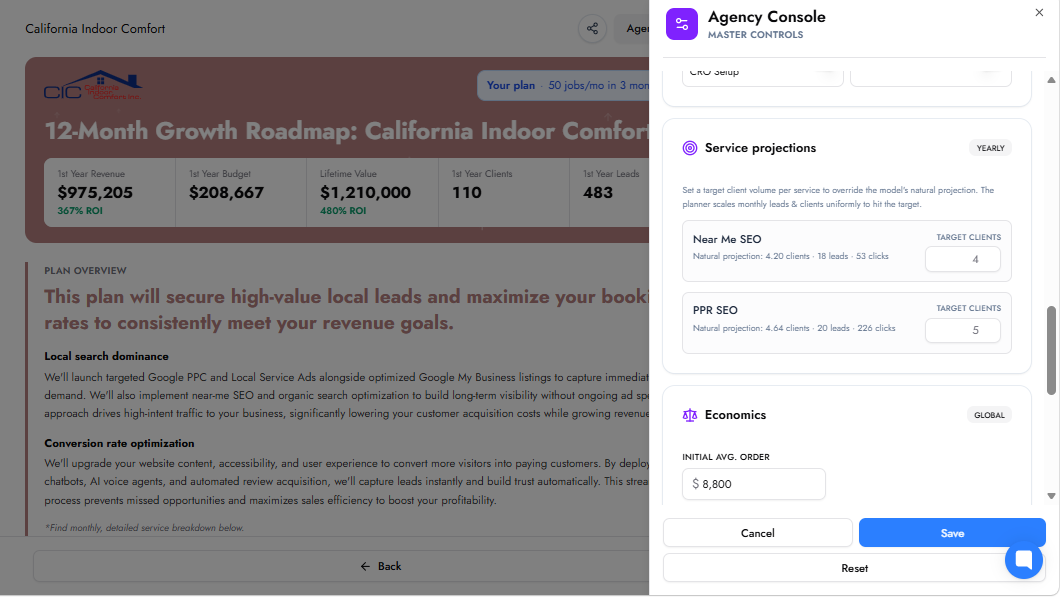
Review the expected client numbers for Near Me SEO and Pay Per Result SEO. These projections are calculated from a comprehensive business analysis. Only change them if you have specific data that justifies a different figure.
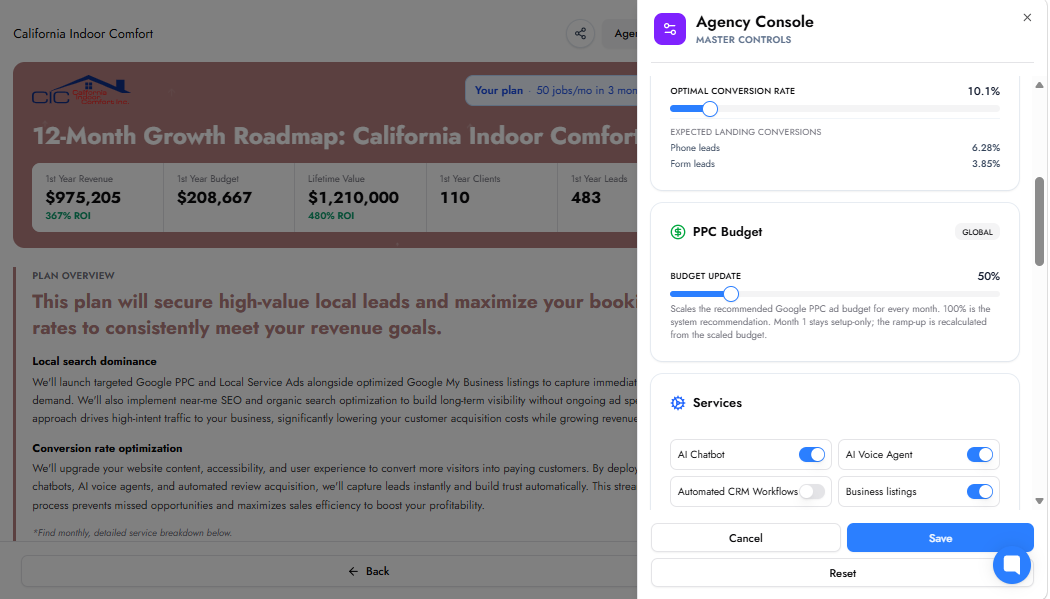
The PPC Budget slider controls the Google PPC ad budget allocated in the growth plan. The default setting is 100%, which reflects the system's recommended budget. Lowering the percentage scales the budget proportionally for every month of the plan. Month 1 remains set up only regardless of the setting, and the ramp-up is recalculated based on the adjusted budget. To use this control, Google PPC must be enabled in the Services section of the Agency Console.
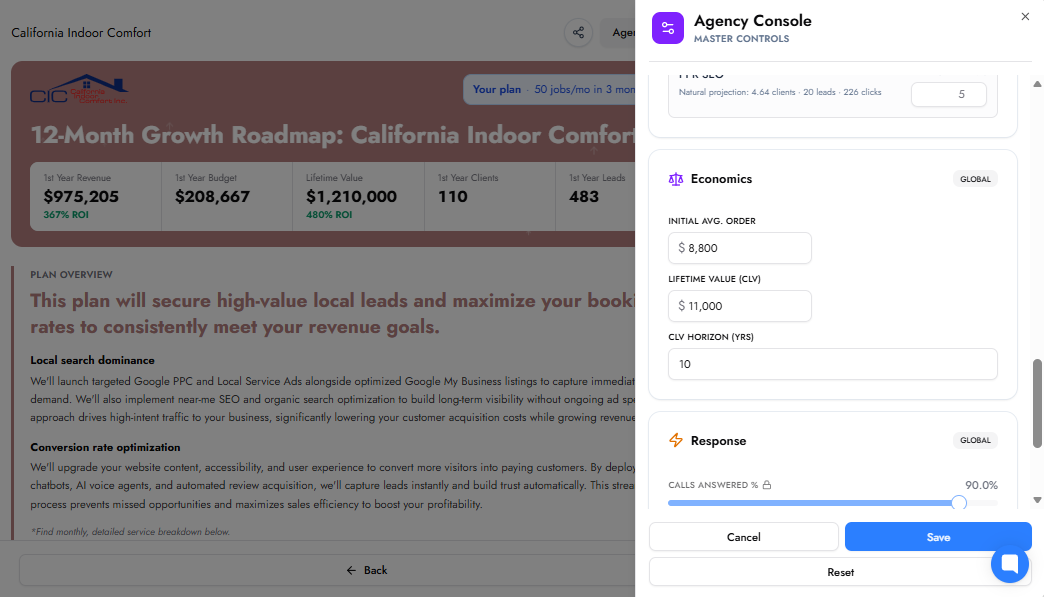
Economics
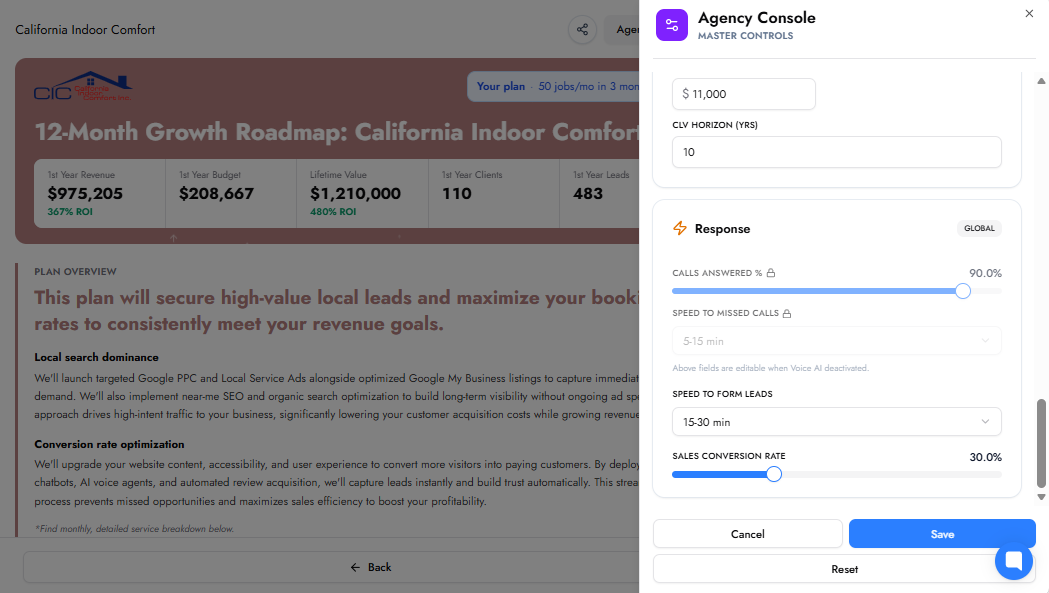
Review and update the average order value, lifetime value, and the time frame used for calculations. Adjust these only if the initial entries were incorrect or need to reflect recent changes. Accurate data produces stronger ROI projections.
This section tracks call answer percentage, speed of returning missed calls, lead response time, and sales conversion rate. If AI Voice Agent and CRM automation are enabled, these metrics are automatically optimized and locked. Otherwise, adjust them to reflect your client's actual performance.
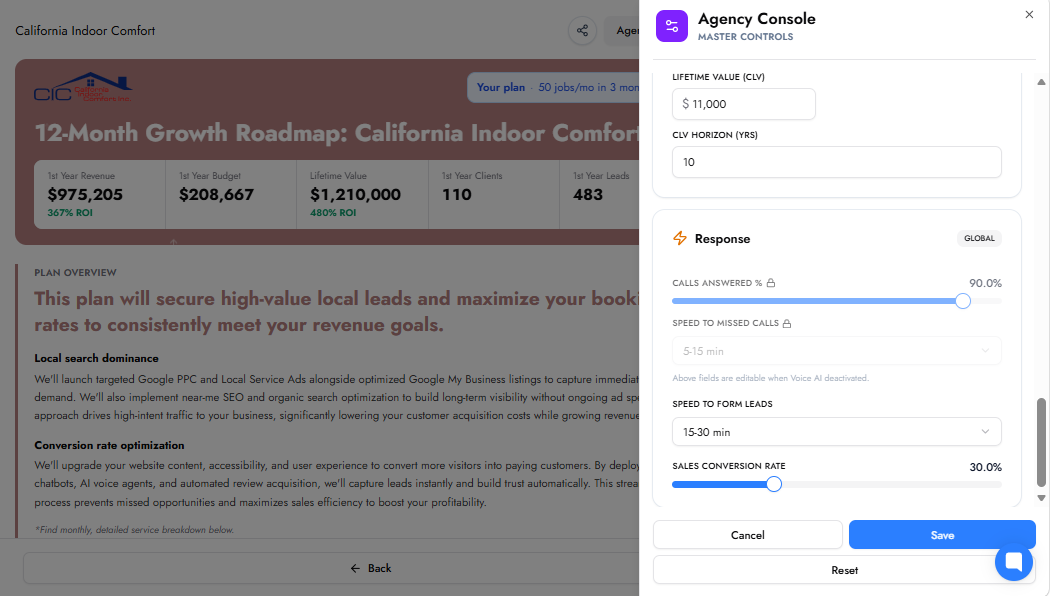
Once everything is set, click Save. The Growth Plan regenerates automatically using the updated figures. Close the Agency Console and review the plan to confirm all changes are reflected.
Revisit the Agency Console whenever your client's goals, pricing, or service lineup change. The more accurate and current the plan, the better you can demonstrate value and ROI.
Using different pricing groups helps you find the right balance between maximizing your profit margins and offering attractive returns to your clients. This guide walks through how to use pricing groups inside the Agency Console to optimize your results.
Open the Agency Console from the top right corner of your 12-Month Growth Roadmap. Locate the Service Tier section — this is where you change the pricing group for your client's plan.
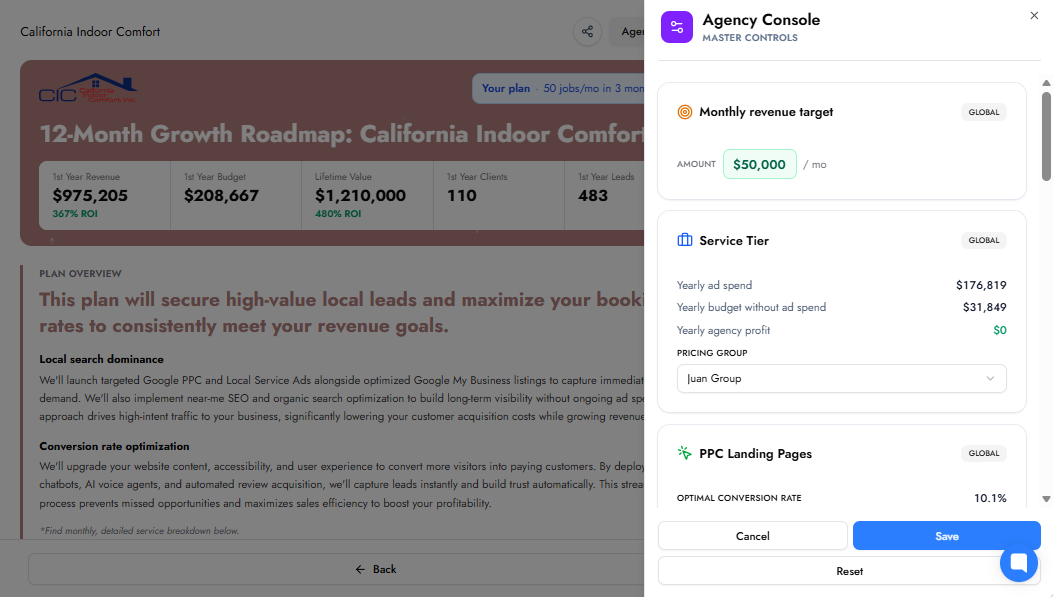
Review your client's yearly budget and the corresponding agency profit. The console clearly displays these numbers, both with and without ad spend. Compare the two to understand the financial breakdown and note the current yearly agency profit.
You can also see from here which pricing group or markup percentage is currently active.
To offer a discount to a client, switch to a pricing group with a lower markup in the Service Tier section. Click Save to update the plan. The budget and profit figures adjust automatically based on the new markup.
A lower markup decreases both the client's yearly budget and your agency profit. This is a straightforward way to provide discounts when the situation calls for it.
To ensure you have the highest profit margins possible while still providing a strong result for your client, it is important to price the client's Growth Plan optimally.
A simple way to do this is to assess the expected return on investment (ROI) before finalizing your pricing. You can view the projected ROI for the client at the top of the Growth Plan.
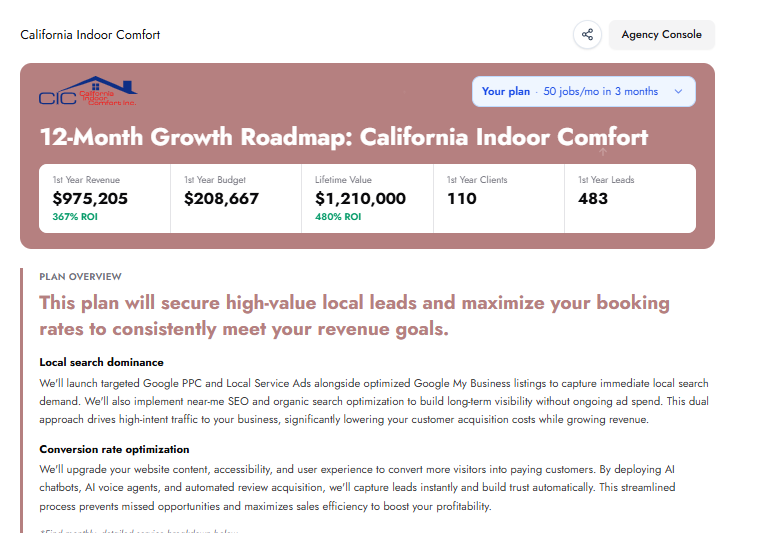
If the ROI is high, as shown in the example above, this signals there is room to increase your profit margin without risking client satisfaction.
In the Agency Console, select a pricing group with a higher markup. Click Save to see how profit and client costs change.
Once the plan updates, review the updated ROI. A higher markup increases your profit but reduces the client's return. Ensure the ROI remains compelling for the client.
If the ROI drops too low, switch back to a lower markup so the client's plan remains attractive. Adjust pricing groups up or down based on the return figures — if ROI climbs higher than needed, boost your markup for more profit. If ROI dips too far, lower the markup for a better client result.
Pricing groups in the Agency Console give you direct control over the balance between agency growth and client value. Experiment with different markups to find the right point where your margins are strong, and the client's plan remains compelling.
Yes. Open the plan, click Agency Console, change the monthly target or the inputs (average ticket, lifetime value, answer rate, response speed, closing rate), and click Save. The plan and the Impact Report recalculate, and shared links show the new numbers. Saving does not use a growth plan credit.