Not every client is ready to commit to a full Growth Plan on day one. Some want to start small with a proof of concept like Near Me SEO, a new website, an AI Voice Agent, or a small package of two or three services before expanding into a complete marketing plan.
Solo product selling lets you sell any individual Growbotik product, or build a custom package of products, directly from a client's business account. You choose the products, apply the pricing group you want for each one, add personalized notes, and close the sale either by processing payment on the spot or by sending the client a secure checkout link.
Selling individual products happens inside a Business Account and requires a completed analysis for that business. The full flow is:
Add a business account (or open an existing one).
Run the analysis. This is a one-click, behind-the-scenes step.
Select products and pricing.
Build the cart and complete the sale.
Each step is covered below.
From Business Accounts, click + Add business account and fill in the client's details: business name, contact name, email, phone, status, website, and address.
Accuracy matters here, especially the business name, website, and address.. These three fields are the inputs for the analysis that runs in the next step, so enter them exactly as they appear for the real business.
For full details on the form and its fields, see the Business Accounts article.

Open the business account and go to the Products tab. You will notice that products cannot be added until an analysis has been run for this business.
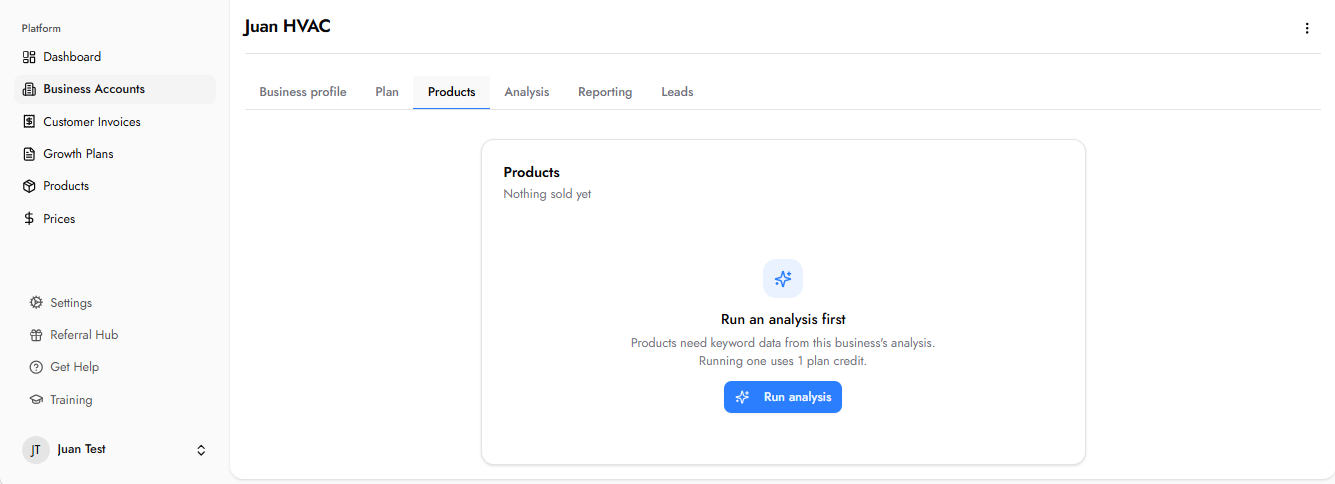
Every product sold through Growbotik is associated with a marketing plan container, which the analysis creates. This association is what allows the system to define, fulfill, and track the work correctly.
Take SEO as an example: Growbotik, not the agency, selects the keywords and fulfills the campaign. Without an analysis of the business, the system has no basis for choosing the right keywords. The analysis gives every product the context it needs to be delivered properly.
Running the analysis takes a single click. It runs silently in the background, the client is not contacted or notified, and completes in roughly five to seven minutes. Once it finishes, the Discovery information appears on the account and the Products tab becomes active.
After the analysis completes, the Products tab shows the full set of products the system recommends for this business's marketing plan. Each product displays its pricing and an In plan badge indicating it is part of the recommended plan.
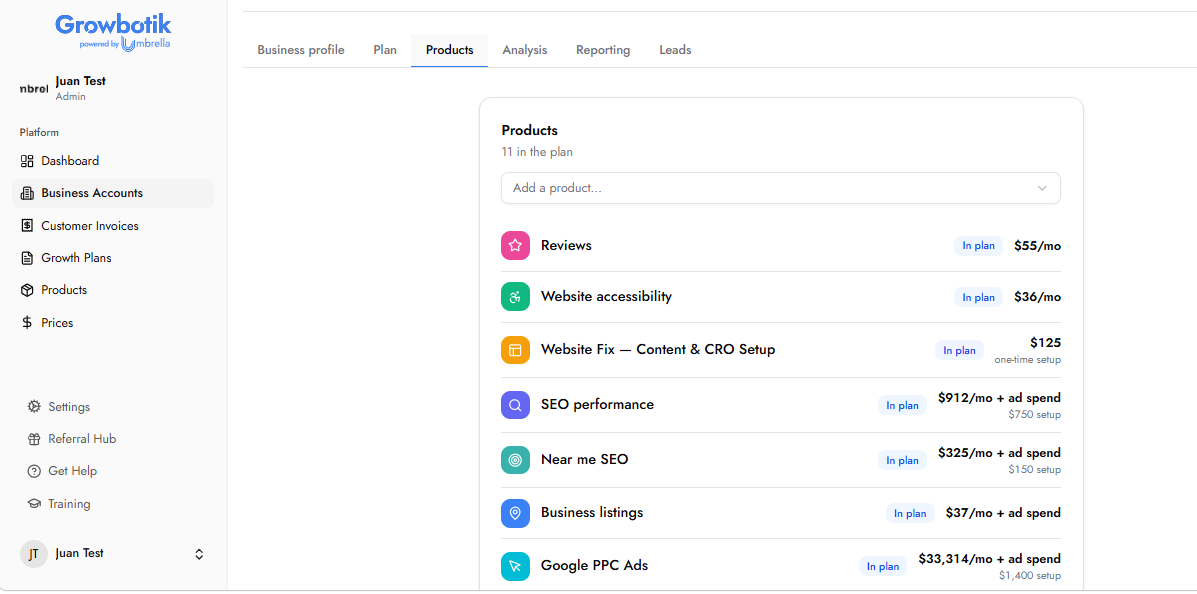
From here you have two paths:
Execute the full plan: go to the Plan tab and execute it as designed. Use this when the client is ready for the complete Growth Plan.
Sell individual products: click on any product to sell it on its own, or use the Add a product dropdown to browse the full product catalog. This is the solo product flow.
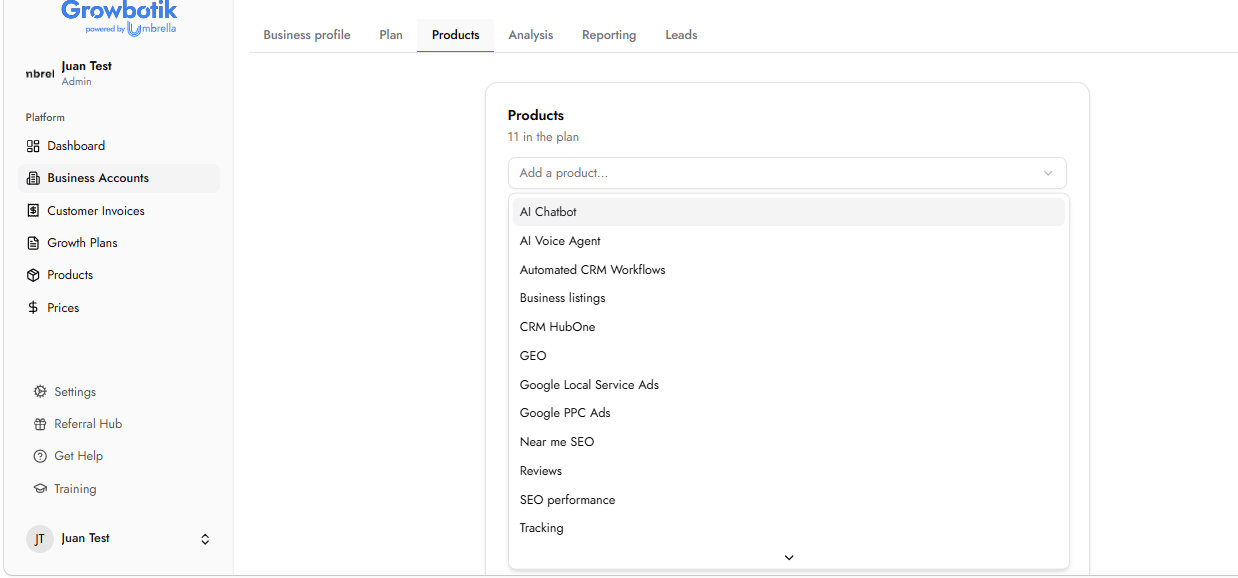
Clicking a product opens a detail modal with four tabs:
Overview — what the product is, its service description, unique selling proposition, and category.
Pricing — how the product is billed, including wholesale price, markup, and retail price.
Features — everything included with the product.
Timeline — how long setup and execution take.
The modal also includes a short video covering the benefits and key sales points you can share with the client.
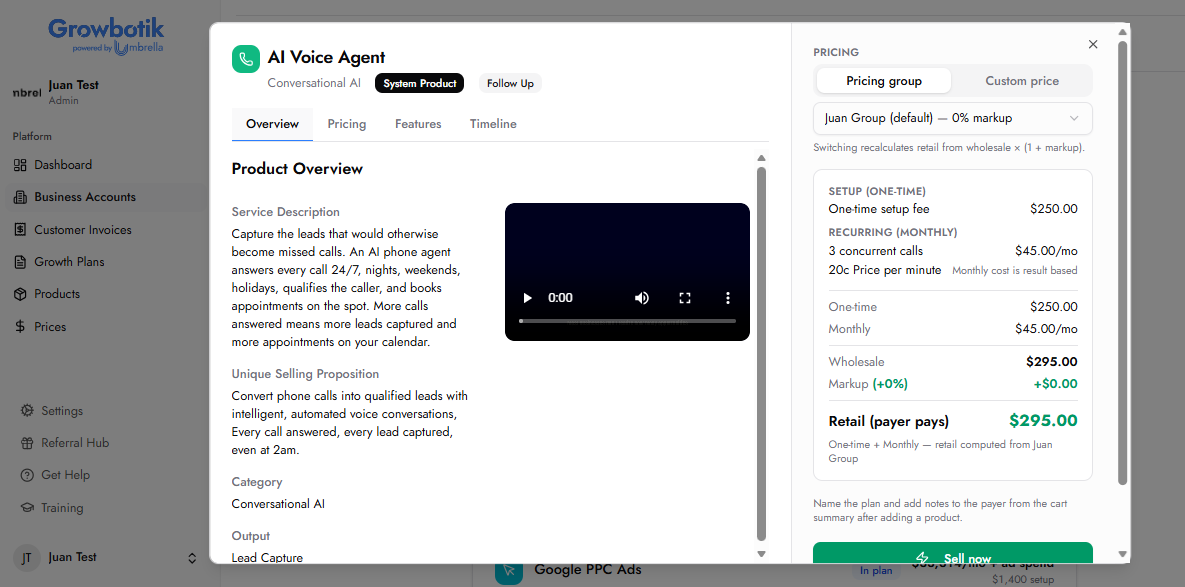
The right side of the product modal shows the Pricing panel, where you choose how to price this product for the client. Two options are available:
Pricing group: Select one of your existing pricing groups. The retail price is calculated automatically from the wholesale price using the markup percentage configured in that group. You can apply a different pricing group to each product in the same cart, useful when your margins differ by product.
Custom price: Set a specific retail price manually for this product, independent of any pricing group.
If the product has multiple plan tiers or billing types (one-time, monthly, or both), the Pricing panel shows the breakdown for the selected configuration. The retail price the client pays is displayed clearly at the bottom.
When pricing is set, you have two options at the bottom of the modal:
Sell now: processes the sale for this single product immediately.
Save to cart: adds the product to your cart so you can continue adding more products and build a custom package.
Repeat Step 3 for any additional products. This is how you build custom packages, for example, a conversion-focused bundle of AI Chatbot, Automated CRM Workflows, and Website Conversion.
The cart shows three running totals:
One-Time Total — all one-time fees combined.
Monthly Total — all recurring monthly fees combined.
Due Today — what the client pays at checkout.
You can add personalized notes to the cart, for example, a summary of your conversation with the client, details about the services, or anything that makes the offer feel tailored. Notes appear on the checkout page the client sees. You can also add an image to make the presentation more polished.
Click save after editing your notes. Unsaved notes will not appear on the checkout page.
There are two ways to close:
If the client is on the phone and ready to buy, click Complete Sale and enter their payment details directly.
Click to copy the cart's checkout link and send it to the client. This is a permalink, the client does not need to log in or be connected to anything. They see the full package: every product, the pricing, the totals, and your saved notes. They enter their card details and complete the purchase.
On mobile, the layout adjusts automatically.
The checkout page includes a Talk to a Human button for clients who want to speak to someone before completing the purchase. By default, this routes to the Growbotik team. You can change the destination, phone number and booking link, in your Settings at any time.
No. Every product must be associated with the marketing plan container that the analysis creates. This is what allows Growbotik to define the work correctly, such as selecting SEO keywords, and track results. The analysis takes one click and roughly five to seven minutes.
No. The analysis runs silently in the background. The client is not contacted or notified.
Yes. Each product in the cart can use a different pricing group, so you can apply different markups to different products in the same package.
No. The checkout link is a permalink. The client simply opens it, reviews the package and your notes, and enters their payment details.
Open their business account, go to the Products tab, and add more products to a new cart at any time. The existing analysis remains valid, so there is nothing to re-run.
Yes. Selling individual products does not prevent you from executing the full plan later. When the client is ready to expand, go to the Plan tab in their business account.
By default, it routes to the Growbotik team. You can point it to your own phone number and booking link in Settings.
Each single product has a fee of $45 a month on top of its wholesale price. The $195 a month fee applies only to full growth plans.